How To Add Music To PowerPoint (And Make It Play Across Every Slide)

Insert Audio from the ribbon, then select Play in Background to loop your track across slides automatically. Navigate to Insert > Audio > Audio on My PC (use Audio from File on Mac), browse to choose your file, and click Insert. PowerPoint displays a speaker icon on the slide once the file is loaded.
TL;DR
- How to Play Music Across Every Slide (Not Just One): The rapid steps to insert your track and hit "Play in Background" so your soundtrack doesn't abruptly die the second you advance past Slide 1.
- How To Stop Music After a Specific Slide: The secret Animation Pane workaround to cut off audio before serious data slides so your CEO doesn't have to talk over upbeat synth loops.
- Playback Tab Settings Reference: A no-nonsense cheat sheet covering fade-ins, auto-start, and looping toggles so you can configure audio controls in seconds.
- Where To Get Free, Royalty-Free Music For PowerPoint: Four safe audio libraries to find presentation-ready music without catching copyright strikes or getting your livestream muted.
- Embedding Audio vs. Linking to an Audio File: Why modern PowerPoint bakes audio directly into your deck to prevent missing-file panic, plus quick tips to keep file sizes from choking your email.
- Fixing Common PowerPoint Audio Problems: Fast fixes for missing codecs, multi-slide audio cutouts, 100-slide lag spikes, and venue sound-system routing glitches.
- When Background Music Is the Wrong Choice: A reality check on why background beats can't save cluttered slides, and when silence is your presentation's best friend.
- PowerPoint Audio FAQs: Quick answers tackling streaming limits (goodbye, Spotify), browser playback tricks, the 5/5/5 rule, and photo montage setups.
- Turn Rough Decks Into Clean Showstoppers: How 24Slides provides dedicated, brand-trained design teams to make your slides look sharp within 24 hours, no background soundtrack required.
Nothing flattens a room quite like an awkwardly silent deck. Luckily, learning how to add music to PowerPoint takes less than a minute, and you don't have to suffer through the audio rudely cutting out the second you advance a slide.
Here is the foolproof way to cue up your soundtrack and keep it playing seamlessly across your entire presentation.
How To Play Music Across Every Slide (Not Just One)
By default, PowerPoint takes audio very literally. If you insert a song onto Slide 1, the program assumes you only want that sound playing on Slide 1. The second you advance to Slide 2, the audio abruptly cuts out. If you are learning how to add music to a PowerPoint presentation for an expo kiosk, a product showcase, or a photo montage, that sudden silence is jarring.
Here is how to get the audio onto your canvas properly and keep it streaming smoothly across your entire deck.
First, Insert Your Audio File
Before you can configure continuous playback, you need to place the audio track onto your starting slide. Here is how to insert music into a PowerPoint:
- Navigate to the slide where you want the music to begin (usually Slide 1).
- Click the Insert tab on the main top ribbon.
- Browse your files, select your audio track (.mp3 or .wav), and click Insert.
- Choose Audio on My PC... (or Audio from File... on Mac).
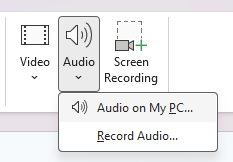
- Browse your files, select your audio track (.mp3 or .wav), and click Insert.
Once inserted, a small gray speaker icon with playback controls will appear right in the middle of your slide. You can click and drag this icon anywhere on the canvas so it stays out of the way of your text and visuals.

Using the Play in Background Shortcut
If you want the fastest way to add a song to a PowerPoint slideshow so it plays uninterrupted across every slide, Microsoft has an automated one-click preset:
- Click directly on the gray speaker icon on your slide to select it.
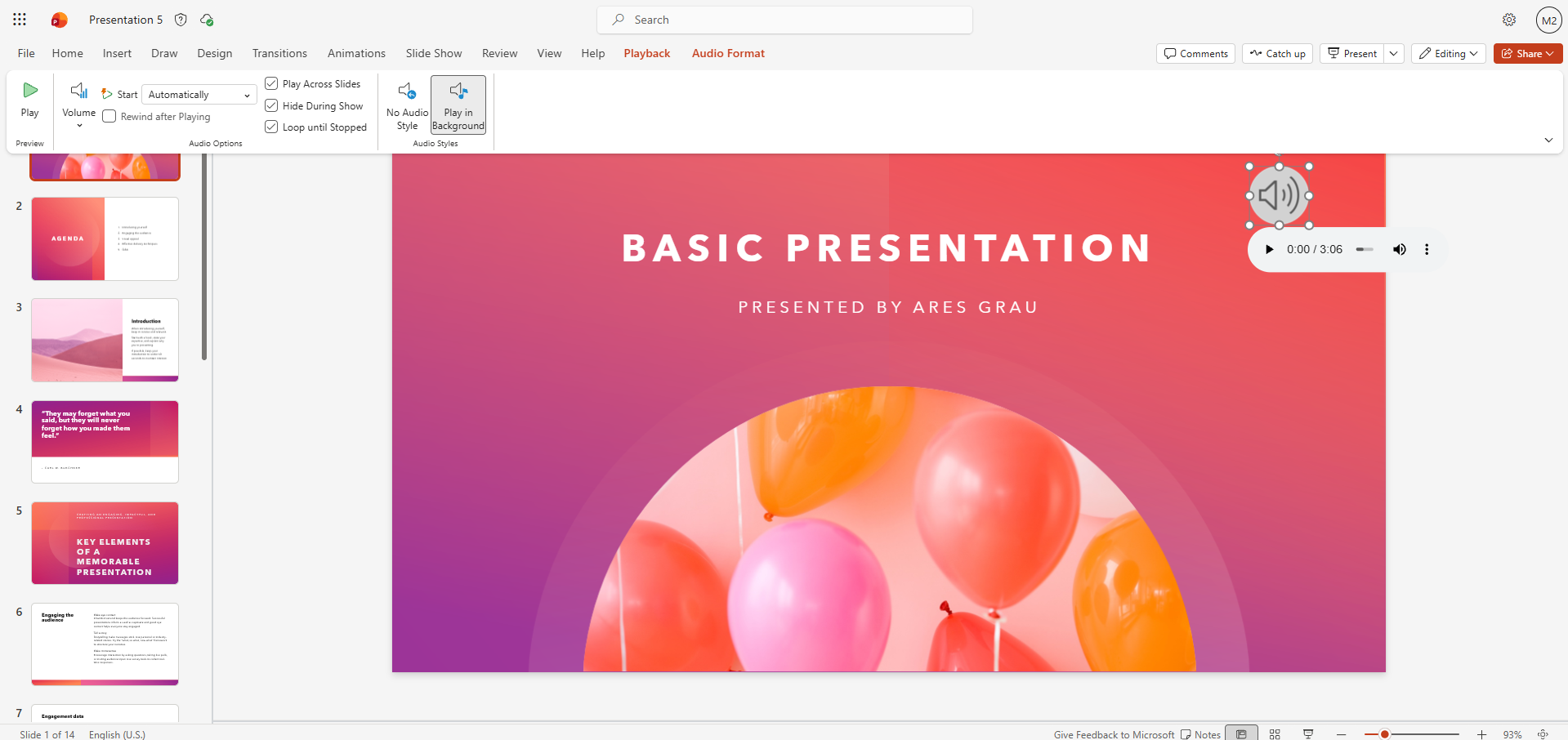
- Look at the top ribbon for the contextual Playback tab (this tab only appears when the audio icon is actively highlighted).
- In the Audio Styles group, click the Play in Background button.

That single click automatically handles four background settings at once: it tells PowerPoint to start the song immediately, keep it playing as slides change, loop the track if your presentation runs long, and hide the speaker icon from your audience. If you want to know how to embed music in PowerPoint with zero timeline wrangling, this is your shortcut.
Running an automated booth? Pair your background audio with our guide on how to loop a PowerPoint presentation to make the entire experience run hands-free from start to finish.
Manually Setting Play Across Slides, Loop Until Stopped, and Hide During Show
While the background preset is great, it turns on every automation at once. If you are asking yourself, "how do I add music to a PowerPoint while keeping custom control over when it stops or whether it loops?", you can configure each setting individually.
Select the speaker icon, go back to the Playback tab, and customize these four options under the Audio Options group:
- Start: Automatically (Dropdown): Forces the music to kick off the millisecond the slide opens, requiring no clicks from the presenter.
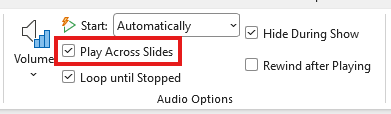
- Play Across Slides (Checkbox): Keeps your soundtrack playing continuously through transitions instead of restarting on each slide.
- Loop until Stopped (Checkbox): Ensures the music repeats if the audio file ends before you finish presenting. Leave this unchecked if the song should only play once.
- Hide During Show (Checkbox): Hides the speaker icon during your live presentation so your visual layout stays clean.

How To Stop Music After a Specific Slide
When you add music to PowerPoint, you don’t always want a single track blasting from slide one through the thank-you screen. Picture this: you have an upbeat audio track setting the mood during an opening 4-slide photo reel, but the second Slide 5 appears, your financial forecast, you need dead silence so your CEO can speak without competing with heavy basslines.
If you’re researching how to embed music in PowerPoint so it covers only a distinct chapter of your deck, you’ll hit an immediate roadblock. If you scan the Playback tab on the ribbon, you will search in vain; Microsoft does not provide a simple checkbox to stop audio after a designated slide.
Instead, the solution is buried inside the animation timeline. Here is the Reddit-tested workaround to stop your music exactly when you want:
- Click on the slide where your audio track begins.
- Head to the Animations tab on the top ribbon.
- In the Advanced Animation group, click Animation Pane to open the panel on the right side of your screen.
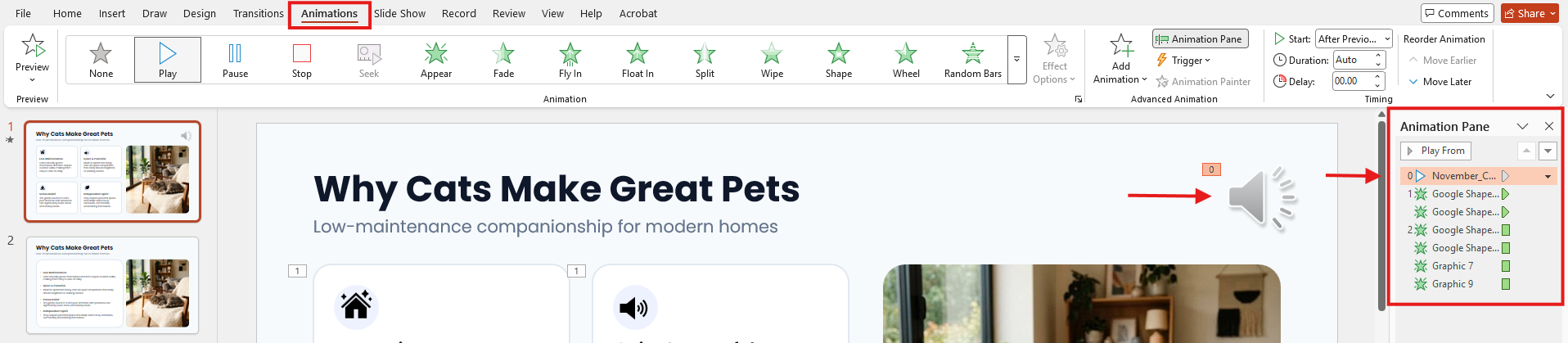
- In the Animation Pane list, locate your audio clip (marked with a small media or speaker icon). Click the small down arrow next to its name, or right-click it, and select Effect Options....
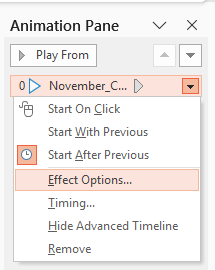
- In the pop-up dialog, stay on the Effect tab and find the Stop playing section.
- Click the radio button next to After: and type the total number of slides the music should play across. (Pro tip: If your song starts on Slide 1 and you want it to mute the second Slide 5 appears, enter 4).
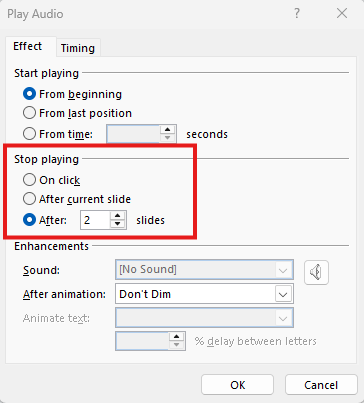
- Click OK to confirm.
Playback Tab Settings Reference
Once you know how to add music to a PowerPoint, dialing in clean sound design comes down to the contextual Playback tab. Instead of guessing how overlapping toggles interact during a live run, use this reference to configure your audio controls in seconds.
Where To Get Free, Royalty-Free Music For PowerPoint
Before learning how to embed music into PowerPoint, you need source tracks you are actually licensed to broadcast. Ripping copyrighted commercial tracks from streaming apps is a fast way to get a recorded keynote muted or an expo livestream flagged for copyright strikes.
Here are four reliable audio libraries offering clean, presentation-ready tracks you can legally download and use:
YouTube Audio Library
Tucked directly inside YouTube Studio, this catalog offers thousands of studio-grade instrumental tracks and sound effects filtered by genre, mood, and instrument. It is an ideal starting point for corporate background loops and subtle ambient textures.
- Access Gotcha: If a direct link to the library simply bounces you to the generic YouTube homepage, it means you aren't logged in or haven't created a YouTube channel on that Google account yet. You don't need to post videos, but you must click "Create a channel" under your profile icon once; otherwise, Studio will lock you out of the library.
- Licensing terms: Tracks labeled with the standard YouTube Audio Library license require zero attribution, while tracks carrying a Creative Commons (CC-BY) symbol require you to credit the artist in your deck or presentation notes.
Free Stock Music
Free Stock Music specializes in downloadable production music neatly tagged by tempo, mood, and presentation theme (from upbeat corporate acoustic to ambient electronic). You can preview waveforms directly in your browser before downloading uncompressed MP3 or WAV files.
- Licensing terms: Tracks are free for both personal and commercial slide shows under Creative Commons BY 4.0, provided you include explicit author attribution on an acknowledgment slide or in your handout materials.
TeknoAxe
TeknoAxe offers an expansive library of over a thousand original tracks spanning techno, synthwave, orchestral, rock, and ambient genres. Because the music is composed specifically for media backgrounds, most tracks loop easily without jarring tempo shifts.
- Licensing terms: Every piece is provided under a Creative Commons CC BY 4.0 license, meaning commercial and non-commercial presentation use is completely free as long as you provide clear credit with a link to TeknoAxe.
Josh Woodward
Josh Woodward is an independent musician who makes his entire catalog of over 200 acoustic, folk, and alternative songs freely available. Notably for presenters, almost every song includes a standalone instrumental version so vocals never clash with your spoken remarks.
- Licensing terms: All instrumental tracks are free to use under Creative Commons Attribution (CC BY), with optional paid licenses available if your organization requires zero-attribution presentation decks.
One Design Partner
From infographics and reports to full marketing collateral, built on demand.
Embedding Audio vs. Linking to an Audio File
There is one technical pitfall that ruins more slide audio than bad transitions or volume glitches: broken file links.
In older versions of Office, PowerPoint frequently defaulted to linking external media. The resulting failure mode is classic and brutal: the track plays flawlessly in your office, but the moment you email the .pptx to a colleague or load it onto an event laptop, PowerPoint serves up dead silence. The presentation is pointing to an audio file located on your local hard drive (C:\Users\Downloads\song.mp3), a path the new computer can't access.
Fortunately, modern versions of PowerPoint (2013 and newer, including Microsoft 365) automatically embed audio files into the presentation canvas by default for files under ~100MB. Embedding physically writes the audio data directly into the .pptx file container, ensuring your soundtrack travels wherever the presentation goes.
However, embedding introduces a different challenge: file bloat.
While PowerPoint can easily swallow a 50MB uncompressed WAV track, that oversized file will instantly choke standard email attachment limits (typically capped at 20MB to 25MB) and cause lag during cloud syncs. For the cleanest setup:
- Stick to high-quality compressed .mp3 or .m4a files (which rarely exceed 5MB to 8MB).
- If your deck feels sluggish or refuses to send via email, head to File > Info > Compress Media to let PowerPoint downsample the embedded audio without damaging presentation playback quality.
Fixing Common PowerPoint Audio Problems
Even when you follow the right steps for how to add music to PowerPoint slideshow decks, audio playback can throw an unexpected curveball right before showtime. Here is how to diagnose and resolve the four most common playback headaches:
1. Unsupported Formats and Missing Codecs
If an audio track fails to insert or will not play, your computer is likely missing the specific codec required to decode that media file. This frequently occurs when a presentation is built on one device and opened on another PC that lacks the original author's installed codecs.
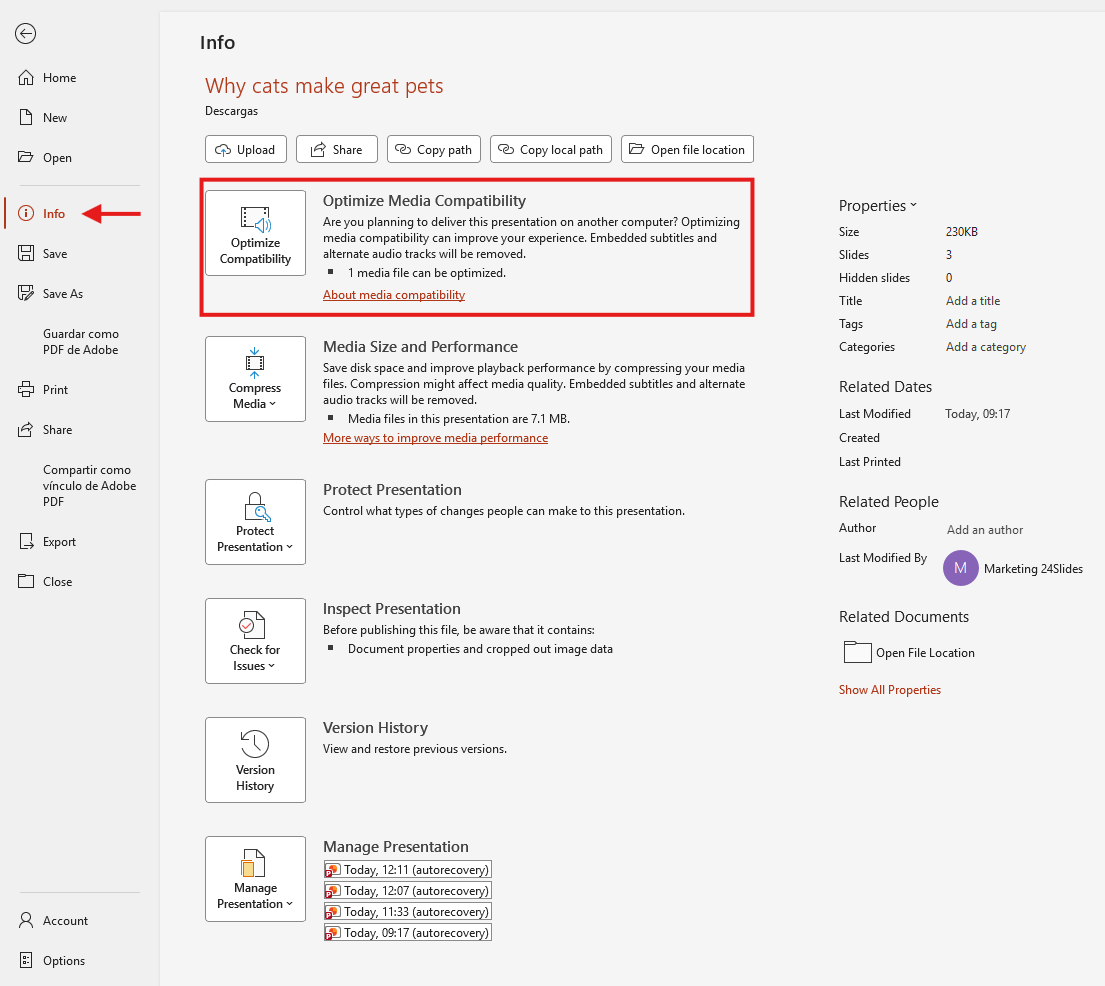
- The Fix: Head to File > Info and select Optimize Compatibility to let PowerPoint automatically re-encode and improve the media file. If issues persist, install a third-party decoder and encoder filter (such as ffdshow or DivX), or use Windows Media Player to identify the required codec and download it from a resource like fourcc.org. (Note: If you create the presentation on a PC and deliver it on a Mac, use media with the .mp4 file format extension to ensure compatibility)
2. Audio Cuts Out When Advancing Slides
If your track plays on Slide 1 but instantly dies the moment you click forward, PowerPoint simply lacks the instruction to span the presentation.
- The Fix: Select the gray speaker icon, open the Playback tab on the top ribbon, and make sure Play Across Slides is checked. If it still cuts out, verify that Slide 2 does not have a conflicting sound effect applied under Transitions > Sound.
The 100+ Slide Freeze (Playback Gets Stuck)
In massive presentation decks (like a 150-slide company archive or photo reel), continuous audio tracks can stutter or cause PowerPoint to freeze entirely mid-deck. This bottleneck typically happens when the system cache struggles to buffer background media alongside hundreds of visual assets.
- The Fix: Navigate to File > Info and click Optimize Media Compatibility to let PowerPoint re-encode embedded files. If stuttering persists, go to File > Options > Advanced, scroll to the Display section, and check Disable Slide Show hardware graphics acceleration.
4. Audio Silent in Presenter View vs. Slide Show Mode
Testing audio in edit mode or Presenter View often causes false alarms. Tracks configured with Start: Automatically will not trigger while clicking around edit view; they only initialize once you launch the full presentation (F5).
- The Fix: If the track plays through your laptop speakers but cuts out on the venue sound system, PowerPoint is sending audio to the wrong channel. PowerPoint does not have an internal audio routing menu; it mirrors your operating system's default output. Open your Windows or macOS sound settings and set your connected HDMI/PA system as the primary output device before launching your show.
When Background Music Is the Wrong Choice
Let’s be brutally honest: just because PowerPoint lets you blast a beat doesn't mean your audience wants to hear it.
If you are walking into an executive board meeting, pitching hard-nosed venture capitalists, or breaking down a dense quarterly review, leave the audio track off. Nothing makes a room cringe faster than an upbeat synth-pop groove looping in the background while your CFO explains a 12% revenue dip. In serious business settings, the data, your spoken insights, and the narrative must carry the room, not an acoustic guitar solo.
Here is the unfiltered truth most agencies won't say out loud: if you're hunting for background tracks just to make a dry presentation "feel more exciting," audio is merely a band-aid. Slapping a soundtrack over crowded bullet points and messy charts won't rescue anyone's attention span. In those high-stakes moments, your slide layout, visual clarity, and story flow need love, not your playlist.
Frequently Asked Questions
1. How do I add background music to a photo slideshow?
Navigate to Slide 1 and select Insert > Audio > Audio on My PC. Choose your audio file, then click the speaker icon on the slide canvas. On the contextual Playback ribbon tab, click Play in Background. This preset automatically configures the track to start automatically, span seamlessly across all photo slides, loop continuously, and hide the speaker icon during your show.
2. What is the 5/5/5 rule for PowerPoint?
The 5/5/5 rule is a presentation design guideline created to avoid cognitive overload. It advises using no more than five words per line of text, no more than five lines of text per slide, and no more than five text-dense slides in a row. Adhering to this structure keeps your slides readable and prevents your audience from tuning out.
3. Why can't I play MP3 media in PowerPoint?
PowerPoint cannot play an MP3 file if your operating system lacks the specific codec required to decode it. To fix this, navigate to File > Info and run Optimize Compatibility so PowerPoint can re-encode the media. If issues persist, identify the missing codec using Windows Media Player or convert the file into an uncompressed WAV track.
4. How do I download music for a PowerPoint slideshow?
Download tracks from dedicated royalty-free music platforms such as the YouTube Audio Library, Free Stock Music, TeknoAxe, or Josh Woodward. Always save audio files in MP3 or WAV format directly to your local computer drive. Before adding music to your slides, verify the creator's licensing terms to check whether your presentation requires attribution or a Creative Commons credit slide.
5. Why does my PowerPoint music stop when I change slides?
By default, PowerPoint restricts audio playback strictly to the slide where the file was inserted. To maintain uninterrupted music across slide transitions, select the speaker icon, open the Playback tab, and check Play Across Slides (or click Play in Background). Additionally, confirm that subsequent slides do not feature conflicting transition sound effects, which automatically cancel out active background audio.
6. Can you add music to PowerPoint from Spotify or Apple Music?
Can you add music to PowerPoint directly from streaming platforms like Spotify, Apple Music, or YouTube Music? Unfortunately not, because streaming tracks are protected by digital rights management (DRM) encryption. PowerPoint requires accessible, DRM-free local files. To soundtrack your deck, download royalty-free MP3 or WAV tracks from open audio libraries or use unencrypted audio files stored locally on your hard drive.
7. How do I add music to PowerPoint on the web?
If you are using PowerPoint for the Web, both free Microsoft accounts and Microsoft 365 subscribers can do it directly in the browser. Select your slide, click Insert > Audio, and upload your audio file. Once it appears, select the speaker icon and use the Playback tab to toggle Play Across Slides or Play in Background.
Final Words
Background audio is great for an automated expo booth or a photo montage, but in high-stakes meetings and client pitches, no playlist can rescue cluttered slides or confusing data. When you need to persuade decision-makers, visual hierarchy and narrative clarity have to carry the room on their own.
That is where 24Slides comes in. Rather than rolling the dice on a rotating pool of freelancers or burning internal bandwidth, 24Slides provides fully managed presentation design capacity. You get a dedicated, brand-trained team, designers, project managers, and quality leads who master your brand identity, preferences, and guidelines over time, backed by an enterprise-ready platform and reliable 24-hour turnaround.
Whether you need urgent turnaround on a business-critical deck or a scalable design partner for ongoing company-wide demand, our team ensures your slides command attention without needing a soundtrack to do the heavy lifting.
Ready to turn rough decks into your team's sharpest asset? Get started with 24Slides and upgrade your presentation design today.
You might also find this interesting: Everything You Need To Know About PowerPoint’s Morph And Zoom Features