10 Presentation Design Ideas for Visually Stunning Slides
Gianella Alcantara
Oct 30, 2026
16 mins read
Share this article
We distilled 10 essential presentation design ideas to help teams replace chaotic bullet points with clean, high-impact visual storytelling. Core layout shifts like Bento grid containers, disciplined duotone palettes, and massive data callouts instantly cure slide fatigue, while 24Slides takes over high-volume formatting when DIY design capacity runs out.
TL;DR
Idea 1: Identify Your Audience Before Designing: Why slide density depends entirely on the room, stick to a 1-idea limit for time-starved executives, and give technical teams the 3–4 data points they need to validate your logic.
Idea 2: Outline Using the Rule of Three: The classic storytelling framework (Problem → Evidence → Action) to lock in your narrative blueprint before wasting hours shuffling random text boxes.
Idea 3: Build a Disciplined Duotone Palette: How ditching rainbow templates for a strict two-color scheme—like Deep Navy and Warm Off-White with a 5% Coral pop- creates instant executive polish.
Idea 5: Pair One Display Font with One Body Font: Stop building slides that look like indie ransom notes and lock down a dynamic duo (like Montserrat Bold headers paired with Source Sans Pro body text).
Idea 7: Protect 30–40% Negative Space: Why white space is visual oxygen rather than wasted pixels, backed by layout advice from the professional design team at 24Slides.
Quick-Reference Comparison Table: A scannable cheat sheet diagnosing common visual bottlenecks across all 10 rules with the exact tools and settings needed to fix them.
When DIY Slide Design Stops Working: A clear reality check on when formatting becomes a capacity crisis, and why high-stakes decks (like M&A or investor pitches) belong in professional hands.
Presentation Design FAQs: Fast, direct answers covering what makes a presentation truly great, how to praise a good deck, and how to know when to outsource.
Putting These Ideas Into a Finished Deck: How 24Slides pairs you with dedicated, brand-trained designers to transform messy drafts into boardroom-ready presentations within 24 hours.
Let’s be honest: staring at a blank 16:9 canvas while hunting for fresh presentation ideas is a special kind of creative torture. We’ve all suffered through those agonizing decks packed with wall-to-wall bullet points, awkward clip art, and dense charts that make everyone's eyes instantly glaze over.
The good news? Crafting a genuinely beautiful presentation doesn't require a fine arts degree or a week spent obsessing over drop shadows. Whether you’re brainstorming high-impact ideas for a presentation to pitch investors or just hunting for punchy visual presentation ideas to keep your team awake on a Friday afternoon, a few clever layout shifts make all the difference.
Here are 10 actionable design techniques to turn ordinary slides into visually stunning showstoppers.
More Than Presentations One Design Partner
From infographics and reports to full marketing collateral,built on demand.
Idea 1: Identify Your Audience Before You Open PowerPoint
Executive Audiences vs. Technical Audiences Need Different Slide Density
Before you start scouring the web for flashy ideas for presentations, pause. The single biggest design mistake happens before you even launch PowerPoint: designing for the wrong room. Slide density is never a matter of personal artistic preference; it is determined entirely by who is sitting across the table.
Executive Audiences (The 1-Idea Rule):
C-suite leaders and board members don’t have time to decrypt complex visual puzzles. For an executive deck, limit each slide to one core takeaway anchored by a single, prominent supporting metric (e.g., "Customer churn dropped 14% after the Q2 update"). If leadership has to hunt across three separate charts to find your bottom line, the slide has failed.
Technical Audiences (The 3–4 Data Point Threshold):
Engineers, analysts, and operations leads expect substance and context. While executives need the bottom-line decision, technical reviewers tolerate, and often demand, 3 to 4 tightly grouped data points, workflow nodes, or system dependencies per slide to validate your logic.
When brainstorming unique presentation ideas, calibrating visual density to your audience's cognitive bandwidth ensures your deck actually persuades rather than exhausts.
Idea 2: Outline Your Deck Using the Rule of Three Before Designing Slides
Starting to design slides without an outline is like building a house without blueprints: you end up with pretty walls that collapse under their own weight. When exploring creative presentation ideas, the most effective storytelling constraint is the classic Rule of Three.
Instead of dumping bullet points across disconnected slides, structure every core section using a narrative triad: Problem, Evidence, and Action. This mirrors the proven three-act structure (and the Hero’s Journey framework) that human brains are wired to retain:
1. The Problem: Establish the tension, roadblock, or market shift currently challenging the room.
2. The Evidence: Present the hard data, benchmarks, or case study proof demonstrating the cost of inaction.
3. The Action: Deliver the decisive solution, clear recommendation, or strategic roadmap forward.
Mapping your content into this three-part cadence transforms loose ideas for presentation topics into a persuasive story before you even touch a layout. When executing visual ideas for a presentation, this structure gives your canvas a natural rhythm: one slide to frame the tension, one to spotlight the data proof, and one to deliver the actionable mandate.
Idea 3: Build a Two-Color Duotone Palette Instead of a Five-Color Scheme
Most default PowerPoint templates offer a sprawling palette of five or six accent swatches. That usually leads to visual chaos: navy headlines, green cards, orange icons, and yellow callout boxes all competing for attention. The secret behind consistently beautiful presentations isn’t adding more color; it’s radical chromatic discipline.
Restricting your deck to a strict duotone palette establishes instant brand cohesion, eliminates visual clutter, and prevents audience fatigue.
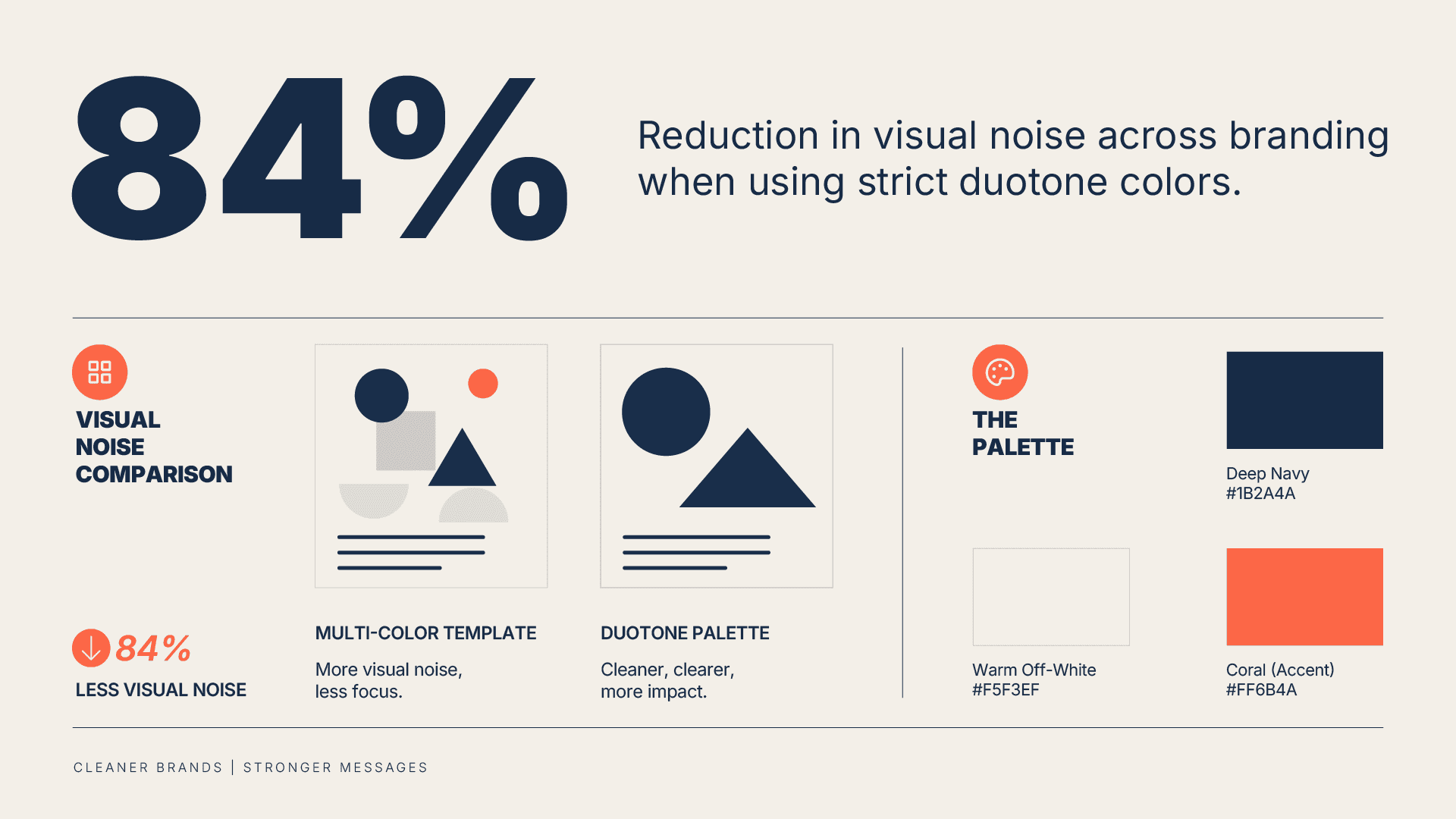
Example Palette: Navy #1B2A4A + Off-White #F5F3EF
Instead of vague advice like "pick colors that look good together," here is a field-tested corporate pairing you can plug straight into your deck:
Dominant Dark: Deep Navy (#1B2A4A) for heavy display typography, structural borders, or full-bleed title slide fills.
Dominant Light: Warm Off-White (#F5F3EF) for slide backgrounds and container cards (substantially easier on human eyes than sterile, blinding #FFFFFF).
Functional Accent (The 5% Rule): A single vibrant accent like Coral (#FF6B4A) or Mint, reserved exclusively for the one data point or metric that matters.
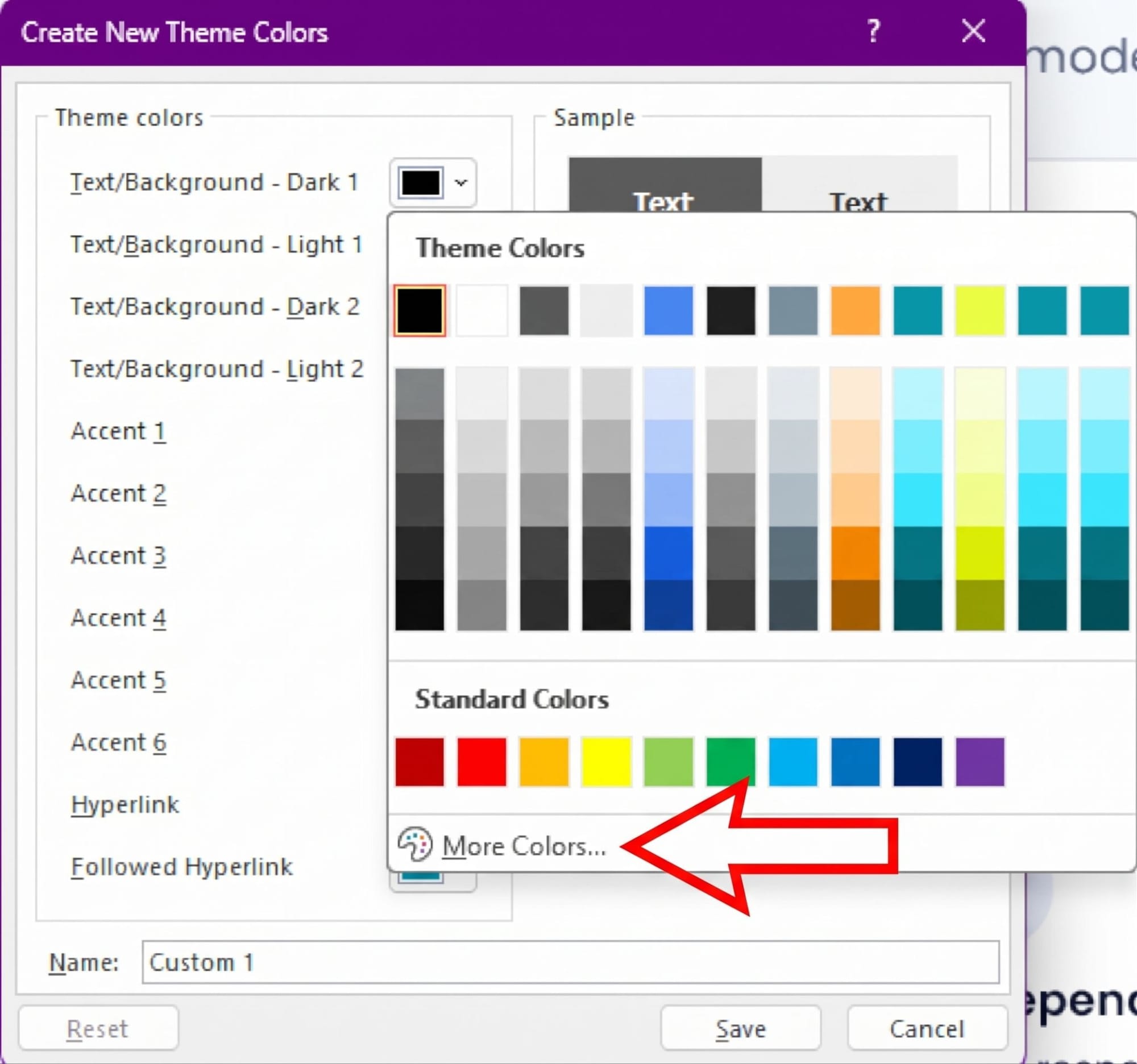
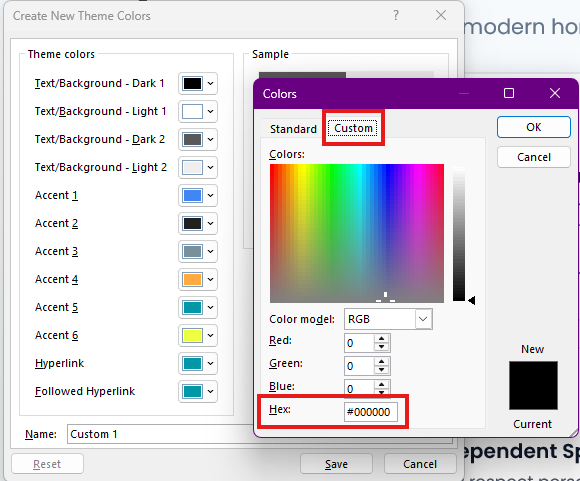
To hard-code this into your presentation, head to the top ribbon and click Design > Colors > Customize Colors.... Input your exact Hex values so you never have to eyeball slide fills again. When executing cool presentation ideas, limiting your palette guarantees every slide feels like part of the same unified, high-end system.
Idea 4: Use 300 PPI Images for Print Decks and 150 PPI for Screen-Only Decks
Nothing deflates a sharp presentation faster than a pixelated photo stretched across a 4K display, except maybe an 85MB deck that instantly bounces from an executive's inbox. Visual quality isn't just about what you show; it is about calibrating technical resolution to your delivery format.
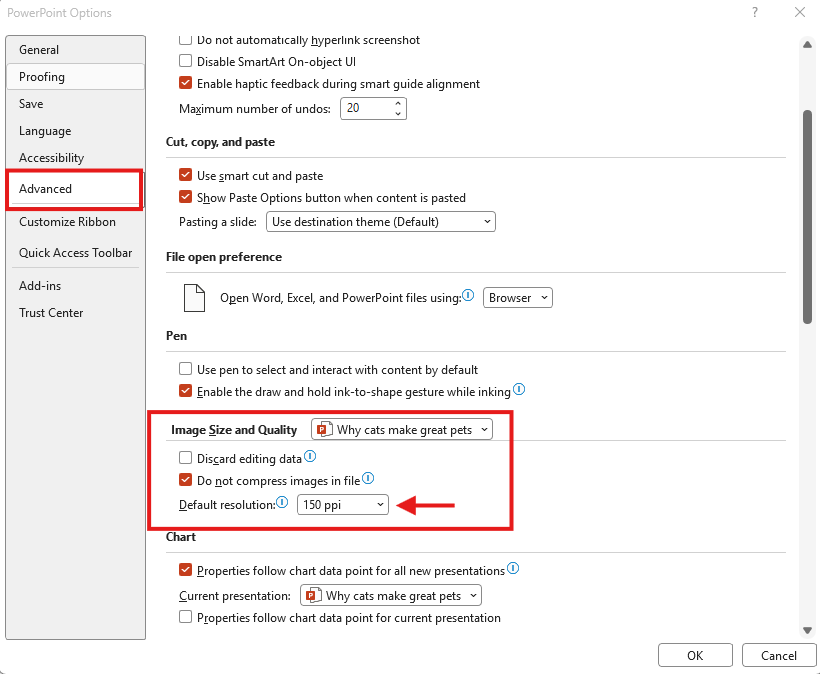
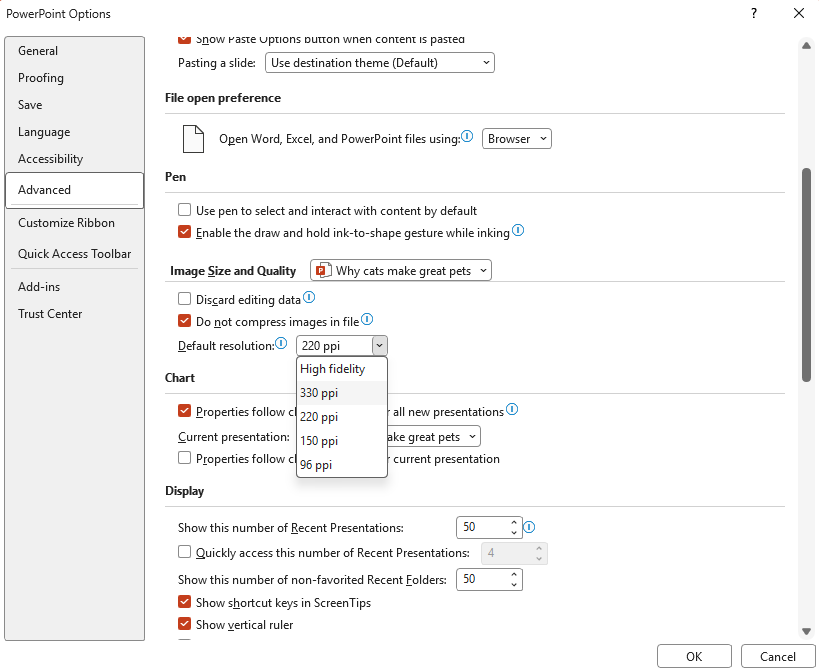
Screen-Only Decks (150 PPI): For virtual meetings, webinars, and email decks, 150 PPI is the sweet spot. It provides pin-sharp clarity on high-resolution displays while keeping file sizes nimble. In PowerPoint, lock this in under File > Options > Advanced > Image Size and Quality, setting your default target output to 150 PPI (or via Picture Format > Compress Pictures).
Image Size and Quality optionPicture format option
Print Decks & Bound Handouts (330 PPI): If you are printing pitch books or board packets, standard screen resolution comes out blurry and muddy. You must preserve uncompressed 330 PPI assets to ensure clean linework and ink fidelity on physical paper.
Beyond resolution, ditch the generic stock photos of corporate actors grinning at a blank whiteboard, an outdated trope that instantly triggers audience tune-out. When developing visual assets and creative ideas for presentation decks, lean on authentic custom workplace photography or curated, licensed editorial libraries that showcase real work in action.
Idea 5: Pair One Display Font With One Body Font (Not Three)
When brainstorming creative ideas for presentations, typography is usually where well-intentioned decks careen off a cliff. Mixing four wildly different typefaces doesn't make your slides look creative; it makes your deck look like an anonymous ransom note clipped together from old magazines.
Save the typographic circus for indie movie posters. In high-stakes decks, you only need a dynamic duo: one heavyweight display font to announce the big takeaway, and one polite workhorse font to handle the reading.
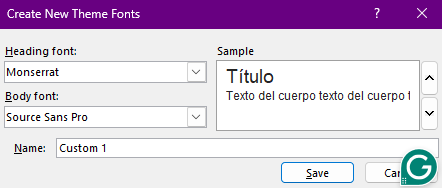
Example Pairing: Montserrat (Headers) + Source Sans Pro (Body)
Skip the chaotic clash of pairing a delicate Victorian serif with an aggressive sci-fi font. True slide chemistry relies on high contrast in weight and scale, not competing personalities:
Montserrat (Display / Header): Geometric, wide, and unapologetic. Dialed up to 36pt–44pt in Bold, it grabs the audience by the collar and establishes instant authority.
Source Sans Pro (Body Copy): The ultimate quiet team player. Clean, open, and built for effortless scanning at 14pt–16pt so nobody has to squint through your supporting points.
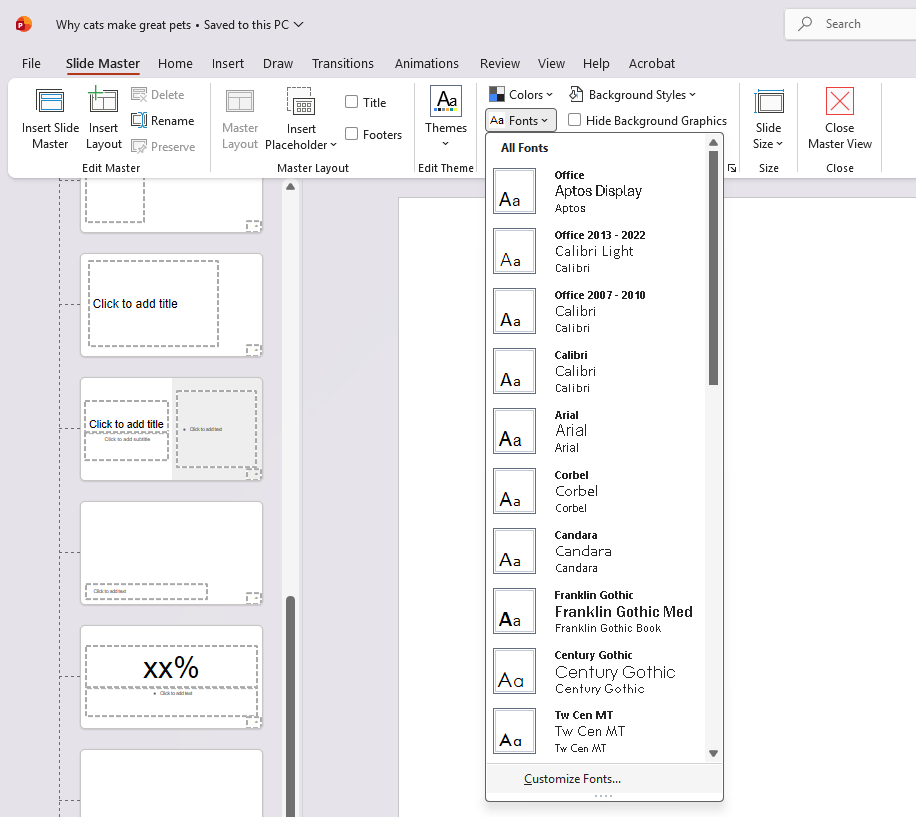
To lock this duo across your entire deck in five seconds flat, go to View > Slide Master on the ribbon, click the Fonts dropdown, hit Customize Fonts..., plug in your dream team, and never manually reformat a text box again.
Idea 6: Use Vector Icons at a Consistent Stroke Width
Grabbing icons haphazardly from search engine image results is the fastest way to give your deck a chaotic, Frankenstein aesthetic. When one card gets a delicate hairline outline, the next gets a thick 5px graphic, and the third is a solid silhouette blob, your slide quietly screams amateur hour.
When exploring sharp visual presentation ideas, real aesthetic harmony lives in the micro-details. Standardize your iconography with two non-negotiable rules:
A Unified 2px Stroke Width: Locking line icons to a consistent 2px stroke weight keeps visual rhythm balanced across every slide. It ensures no single graphic accidentally steals focus from your core narrative.
Strict Style Discipline (Line vs. Filled): Pick one style lane and stay in it. If your product pillars use open, stroked line icons, don’t randomly toss in heavy, solid-filled glyphs two slides later.
Always import scalable vector graphics (SVGs) rather than PNGs. Use Insert > Icons or drop in custom SVG files so you can easily recolor strokes under Graphics Format > Graphics Outline without dealing with blurry, pixelated edges.
Idea 7: Keep 30–40% of Each Slide as Negative Space
When amateur presenters spot an empty corner on a slide, panic sets in. The instinctive urge is to fill the void: stretch a graphic, bloat the font size, or toss in an ornamental chevron just so the slide feels "finished."
Resist the urge to hoard pixels. At professional design studios, the baseline rule of thumb is to preserve 30% to 40% of every slide as intentional negative space. White space isn't wasted real estate; it is visual oxygen. It acts as an active structural element that frames your key metrics, reduces cognitive load, and tells the viewer’s brain exactly where to focus first.
To enforce this practically, lock in a minimum 0.75-inch margin buffer around the slide edges using PowerPoint's built-in guides (View > check Guides). If your content creeps into those border zones or crowds adjacent cards closer than 20–30px, you don't need a bigger canvas; you need an editor.
To understand why visual breathing room is so vital, and how top designers overcome the fear of "empty" space, we asked the 24Slides design team to weigh in on how they turn bare canvas into an intentional visual hierarchy:
Question:
Why is negative space critical in presentation design, and how should presenters handle "empty" space on a slide?
"Just like delivering a message is not only about what you say but when you pause, white space in design is that pause that lets the audience digest what you presented and prepare for a new idea. It helps guide the listener and mark differences between sections. There is no exact number or proportion; if you only want to present two ideas, leaving more negative space highlights those elements, while spacing around a chart title gives it balance. You need those pauses to deliver the message correctly. Nevertheless, it also depends on the style; using a soft background gradient with low opacity maintains negative space while giving a sensation of 'more design' to the slide."
"Negative space is just as important as any text, image, or chart. When a slide is overcrowded, elements compete with one another and lose their impact. Negative space establishes visual hierarchy, guiding the viewer's eye to what deserves the most attention. Rather than a universal percentage rule, the key is using space strategically by respecting margin guidelines. If a slide contains too much information, it is almost always better to split it across two slides rather than shrinking fonts. Good design isn't about adding more elements, but knowing which ones are truly necessary."
Idea 8: Use a Bento Grid Layout to Chunk Mixed Content Types
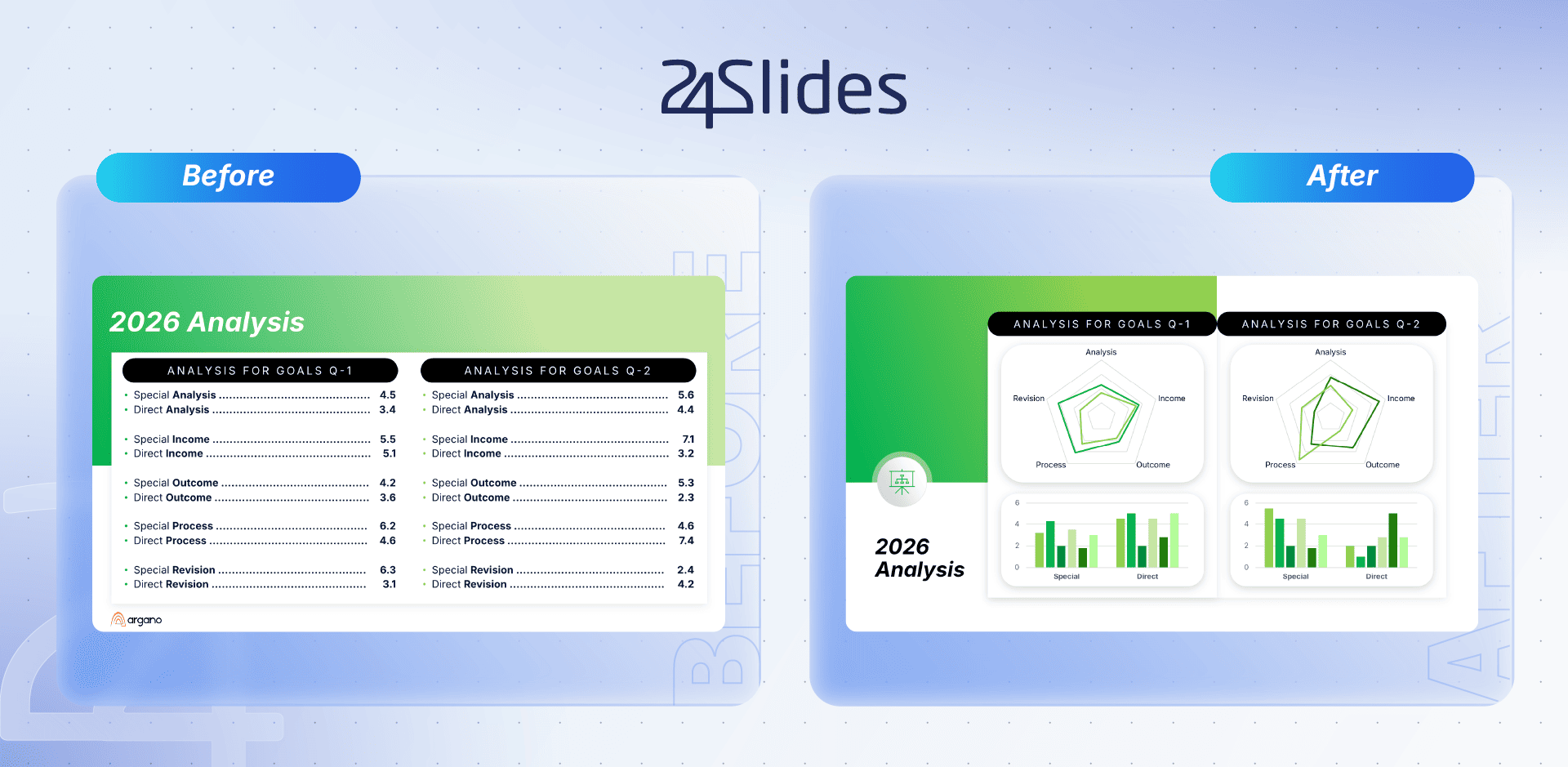
When a single slide demands that you present a big metric, a customer quote, a feature list, and a supporting photo all at once, traditional bullet points turn your canvas into a chaotic visual garage sale. Instead of letting your content crash into each other, borrow a genius trick from Japanese lunchboxes: the Bento Grid Layout.
Just like keeping your teriyaki away from your sushi, a Bento Grid packages disparate content types into clean, distinct rectangular "cards." It breaks up messy information, so your slide looks modular, modern, and effortless to digest:
Give the Main Character the Biggest Box: Assign your primary metric or key takeaway to a large anchor card. Tuck supporting bullet points, vector icons, or mini-charts into smaller surrounding boxes so your audience instantly knows where to look first.
Keep Your Gaps Pixel-Perfect: Lock in uniform gap spacing (around 12px to 16px) between tiles. Construct these in PowerPoint using rounded rectangles (Insert > Shapes), filling them with soft #F5F3EF card backgrounds or subtle 1px #1B2A4A outline borders.
Adopting Bento Grid Layouts is one of the most reliable presentation design ideas for chunking complex narrative structures, giving every piece of content its own VIP booth while keeping the overall canvas unified.
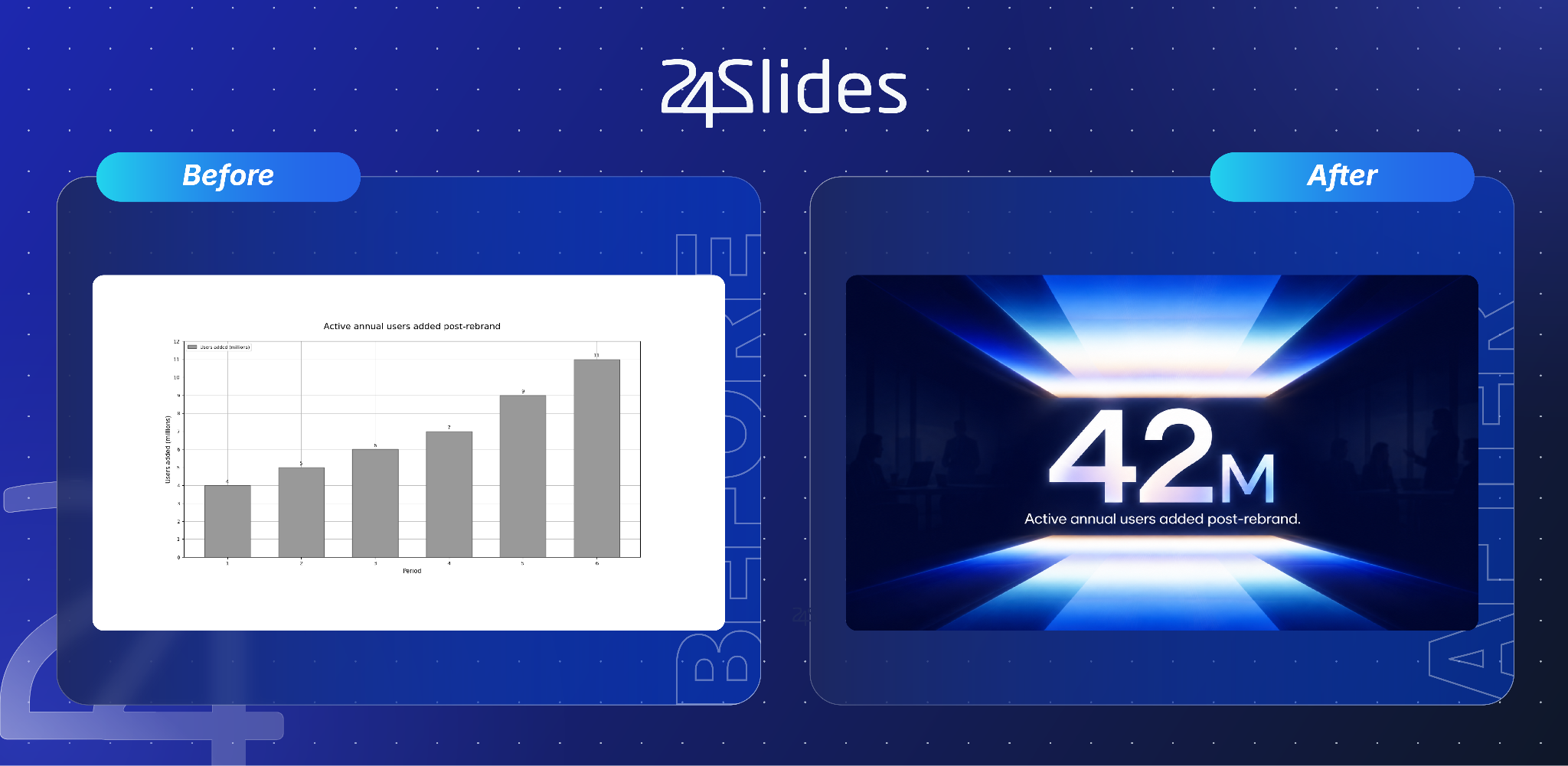
Idea 9: Replace Generic Bar Charts With One Large Callout Number Per Slide
When you have a killer stat to share, burying it inside a cluttered six-column bar chart is visual malpractice. Forcing your audience to squint at axis lines, color legends, and tiny gridlines just to decipher a single key takeaway dilutes its emotional punch.
Instead of making viewers do analytical heavy lifting, embrace Data Sculpting & Callouts. Strip away the chart junk and elevate your core metric into an unmissable, standalone statement that commands the room:
Scale Up the Focal Metric: Render your hero stat, like 42M, in massive 120pt Bold display typography (such as Montserrat) in Deep Navy (#1B2A4A). Make it so prominent that no one in the back row can possibly miss it.
Anchor with a Precise Sub-Label: Place a clean 14pt sub-label directly underneath in Source Sans Pro (e.g., "Active annual users added post-rebrand"). Keep the description to one punchy sentence.
Idea 10: Use Asymmetrical 60/40 Split Layouts Instead of Centered Text Blocks
Defaulting to center-aligned text is the ultimate sign of a lazy slide layout. Centering full paragraphs creates jagged margins, erratic eye movement, and a static presentation that feels like a high school book report.
To give your slides immediate editorial polish, ditch symmetrical centering and embrace Asymmetrical 60/40 Split Layouts:
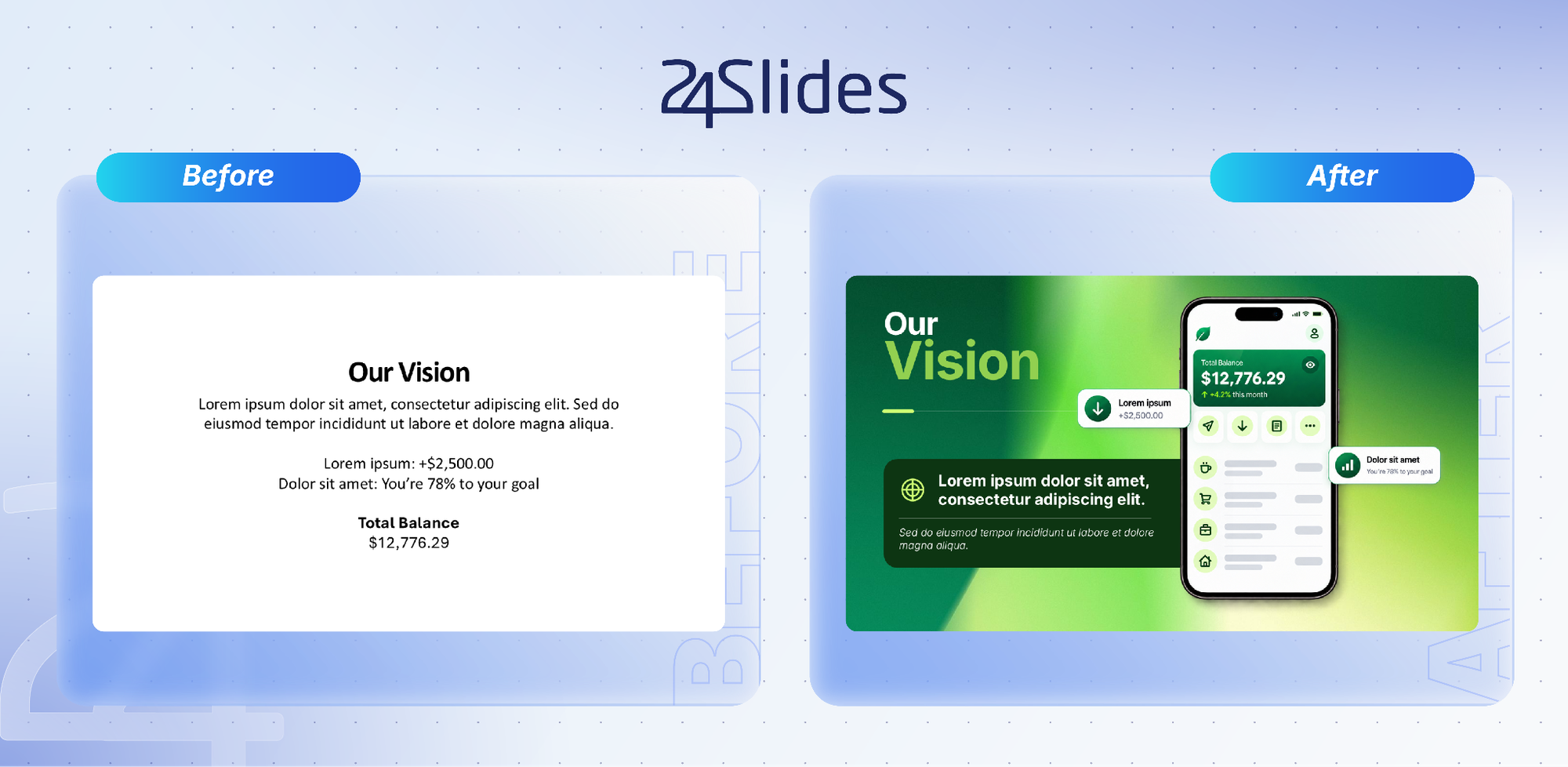
The 60% Visual Anchor: Dedicate 60% of your canvas to your heaviest visual asset, whether that’s a high-res product photo, a clean UI mockup, or a bold Bento container.
The 40% Narrative Column: Reserve the remaining 40% for left-aligned typography. Keeping text left-aligned gives the reader’s eye a crisp, predictable vertical anchor point to return to on every line.
Setting this up in PowerPoint takes five seconds: turn on your canvas guides (View > check Guides) and drag your vertical guide line to set a strict 60/40 column split. An off-center composition creates natural visual tension, forcing the audience’s eyes to sweep intentionally across the canvas rather than passively staring at a static blob in the middle.
Quick-Reference Table: All 10 Ideas, What They Solve, and a Starting Example
Idea
Problem It Solves
Quick Example
Tool/Spec Needed
1. Audience-Calibrated Density
Designing with the wrong information density for your room
1-idea limit for executive decks vs. 3–4 data points for technical teams
Audience Bandwidth Audit
2. Rule of Three Story Outline
Unstructured slides that collapse into disconnected bullet points
Structure deck sections using Problem → Evidence → Action
Narrative Triad Framework
3. Two-Color Duotone Palette
Visual clutter and fatigue from default five-color schemes
Deep Navy (#1B2A4A), Warm Off-White (#F5F3EF), and 5% Coral (#FF6B4A) accent
Design > Colors > Customize
4. Calibrated Image Resolution
Pixelated visuals on 4K screens or bloated 85MB email attachments
150 PPI for screen/email decks vs. 330 PPI for printed pitch books
File > Options > Advanced
5. Two-Font Typographic Duo
Chaotic "ransom note" slides caused by mixing multiple fonts
Montserrat (36–44pt Bold) headers paired with Source Sans Pro (14–16pt) body
Slide Master > Fonts
6. Uniform 2px Vector Icons
Mismatched line weights and inconsistent graphic styles
Standardize all icons to SVG vector files with a strict 2px stroke width
Insert > Icons
7. 30–40% Negative Space
Overcrowded layouts and cognitive overload from hoarding pixels
Leave 1/3 of the slide empty and enforce 20–30px padding around cards
0.75" Margin (View > Guides)
8. Bento Grid Layouts
Unreadable pileups when presenting mixed content types on one slide
Package metrics, text, and photos into modular cards with 12–16px gaps
Insert > Shapes
9. Large Callout Numbers
Key statistics buried and lost inside complex bar charts
Display "42M" hero stat in 120pt Bold with a 14pt explanatory sub-label
Data Sculpting / 120pt
10. Asymmetrical 60/40 Split
Static centered text blocks with awkward, jagged reading margins
Place visual asset in a 60% column and left-aligned text in a 40% column
Vertical Canvas (View > Guides)
When DIY Slide Design Stops Working (And What To Do Instead)
Let’s be real: tweaking alignment guides and picking hex codes is great for rescuing a solo pitch deck, but DIY formatting has a hard ceiling. If your team pumps out more than 10 to 15 presentations a month, or your slides require strict sign-offs from legal, compliance, or a global brand team, you don't have a design-skill problem. You have a capacity crisis.
High-stakes, high-volume scenarios leave zero margin for formatting bottlenecks:
High-Stakes Workflows: Investor pitch decks, confidential M&A materials, strict MLR-reviewed pharma slides, and multi-market rebrand rollouts will happily eat your weekends alive if you try to format them yourself.
The Honest Reality Check: If you just need a single slide fixed today, a dedicated design service is the wrong tool; the 10 rules above will get you across the finish line much faster!
When the presentation grind starts draining your team’s real superpowers, offloading production is the actual fix. Partnering with a dedicated presentation engine like 24Slides hands the heavy lifting to dedicated, brand-trained designers who return enterprise-ready decks within a standard 24-hour turnaround. Your sensitive data stays locked inside a SOC 2-compliant secure workflow, all backed by the ethical standards of a Certified B Corporation.
Master the DIY rules for your quick wins, but know when to delegate the formatting so you can get back to business!
Frequently Asked Questions
How do you describe a great presentation?
A great presentation is a crisp story that makes saying "yes" feel effortless. It scraps the boring data dump and gives every slide a single, unmistakable job: driving an action. When a deck truly works, the room stays awake, the main takeaway sticks, and nobody is left squinting at an eye-straining spreadsheet.
What is a beautiful presentation?
A beautiful presentation is effortlessly clean, not aggressively decorated. It skips the graphic confetti and cheesy stock photos in favor of generous breathing room, crisp typography, and a disciplined two-color palette. Great design doesn't scream for attention; it quietly clears the floor so your big ideas can do the talking.
How to make a beautiful presentation?
Stick to strict structural guardrails: limit your palette to two colors plus one punchy accent, pair a bold headline font with a clean body font, and leave at least a third of every slide empty. Package mixed information into tidy Bento grid cards, and trade crowded bar charts for one massive, show-stopping stat.
How to compliment a presentation?
Praise the clarity and narrative punch rather than just saying it "looked nice." Try specifics like: "Your deck made a dense topic feel wonderfully simple,""The pacing kept everyone engaged the whole time," or "That single callout stat on slide four made the entire business case."
When should I outsource presentation design instead of doing it myself?
Outsource when slide formatting starts hijacking your actual job, usually when your team churns out more than 10 to 15 decks a month or handles high-stakes investor, M&A, and compliance decks. If formatting marathons are eating your evenings, handing slides to dedicated pros is an instant sanity-saver.
Putting These Ideas Into a Finished Deck
These rules will instantly level up your day-to-day decks. But if you’re up against a tight deadline, juggling a mountain of slide requests, or simply want enterprise-grade slides built for you while you sleep, take the fast path. Hand your rough drafts over to the dedicated design team at 24Slides and get a polished, boardroom-ready deck delivered with our standard 24-hour turnaround.
24Slides Design Services
Make Every Important Presentation Count.
Get reliable, brand-trained design capacity whenever you need it. Never let internal bottlenecks ruin a high-stakes pitch.