How to Use PowerPoint Speaker Coach for Flawless Presentations

In the high-stakes world of business, your slides are only half the battle. You could have the most stunning deck in the room, but if your delivery is rushed, monotone, or riddled with "ums" and "ahs," your message will likely fall flat.
That’s where Speaker Coach comes in. Formerly known as Presenter Coach, this AI-powered tool is built directly into Microsoft PowerPoint, serving as your private, non-judgmental rehearsal partner. Whether you are prepping for a boardroom pitch or a keynote speech, Speaker Coach listens to your delivery and provides Real-time feedback to help you refine your pace, pitch, and presence before you ever step in front of an audience.
While mastering your delivery with AI is crucial, your very first impression often happens in the opening seconds of your talk. Before you dive into the technical rehearsal, make sure you've mastered How to Start a Presentation: 15 Ways to Hook Your Audience.
In this article, we’ll cover:
- Key Takeaways: A quick TL;DR on the tool's main features and metrics.
- What does Rehearse With Coach do in PowerPoint?
- How do I turn on speaker coach in PowerPoint?
- How to do a rehearsal in PowerPoint?
- The 3-Minute Accuracy Experiment: The Stress Test
- Speaker Coach vs. Rehearse Timings: What’s the Difference?
- Rehearse with Coach PowerPoint Not Available: How to Fix It
- Beyond AI: Mastering Effective Presentation Techniques
Key takeaways
TL;DR: Don’t have a live audience to practice with? Speaker Coach is PowerPoint’s built-in AI mentor that listens to your rehearsal and provides a detailed "Rehearsal Report." Here is the quick breakdown of how to use it:
- Real-Time Feedback: As you speak, the AI flags filler words (like "um" or "actually"), warns you if you’re speaking too fast, and even alerts you if you are simply reading your slides verbatim.
- Body Language & Pitch: Using the PowerPoint for Web version, the Coach analyzes your eye contact, distance from the camera, and vocal variety to ensure you aren't making a low-pitched monotone sound.
- The Rehearsal Report: After your session, you receive a private dashboard that summarizes your pace, use of inclusive language, and "originality" score.
- How to Start: Open your presentation, go to the Slide Show tab, and select Rehearse with Coach.
Pro-Tip from 24Slides: While the AI is great at catching "ums" and "ahs," it can't fix a cluttered slide. If the Coach tells you that you're "reading from the slide," it’s a sign you need to reduce your text and let your visuals do the talking.

What does Rehearse With Coach do in PowerPoint?
In the past, practicing a presentation meant talking to a mirror or using the basic rehearse timings PowerPoint tool to see how long each slide took. While tracking time is useful for automated slideshows, it doesn't actually tell you how you are performing.
The Speaker Coach, previously known as Presenter Coach, is a significant upgrade that provides Real-time feedback on your delivery style. Instead of just a stopwatch, you get an AI-powered mentor that listens to your voice and analyzes your performance across several key metrics:
- Pacing Analysis: It monitors your speech rate, helping you stay within the optimal 100-165 words per minute to maximize audience comprehension.
- Vocal Delivery & Pitch: The AI tracks your tone to help you avoid a low-pitched monotone sound by suggesting you vary your volume and pitch on key phrases.
- Language Awareness: It identifies filler words (like "um," "uh," or "like") and flags culturally sensitive phrases or profanity to maintain a professional tone across bias categories, including gender, race, and age.
- Content Originality: The tool provides automated suggestions to avoid reading your slides verbatim, which is a core cause of "death by PowerPoint."
Think of it as a private, non-judgmental rehearsal that prepares you for the "Biological AI" of a real human audience. As noted in our 10 Best AI Presentation Makers for 2026, these tools excel at helping you optimize content and delivery in minutes. After your session, you receive a comprehensive Rehearsal Report, a private dashboard that summarizes your performance with a pace graph and filler word counts.
Key Differences to Remember
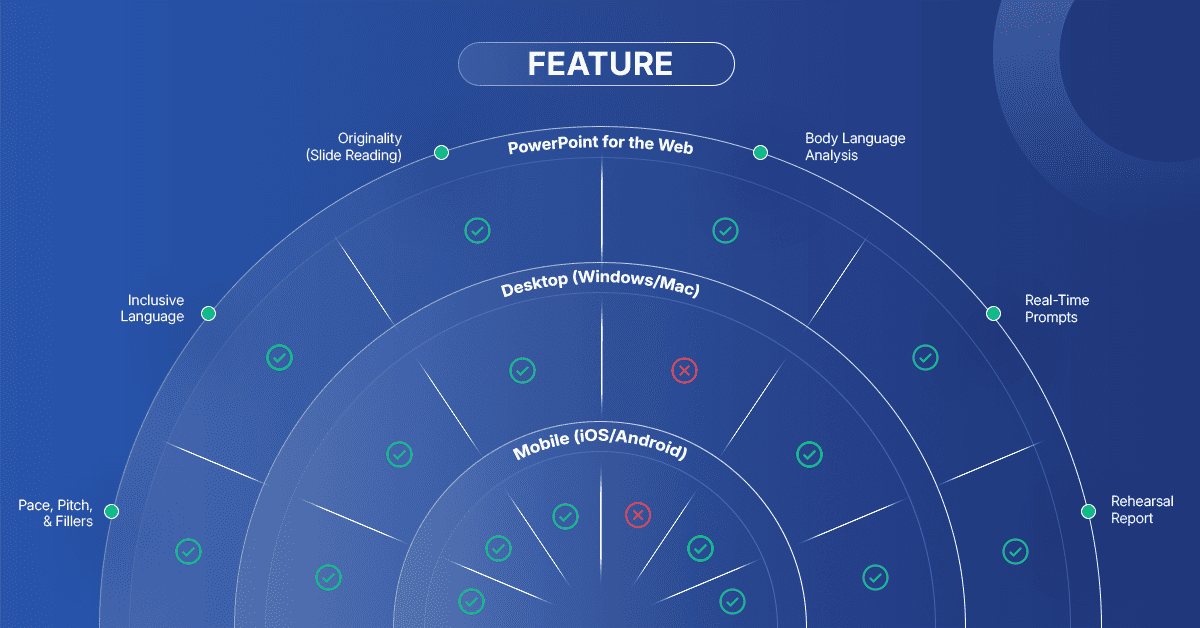
- The Web Advantage: While all platforms offer core Real-time feedback on your voice, the web version is currently the only platform that provides Body language analysis. This includes AI critiques of your eye contact, distance to the camera, and whether your face is clearly visible.
- Mobile Optimization: Practicing on iOS or Android provides a simplified experience. As noted in the official Microsoft Speaker Coach guide, the post-rehearsal report is formatted specifically for smaller screens, yet still tracks essential metrics, such as filler words and pacing.
- Desktop Requirements: To use Speaker Coach on your computer, you must be signed in with a Microsoft 365 account and have your files stored in OneDrive or SharePoint.
Pro-Tip from 24Slides: If you want the most comprehensive presentation skills training, start your rehearsals on the web version to master your body language, then use the mobile app for last-minute "speech-only" checkups before you go live.
How do I turn on speaker coach in PowerPoint?
To refine your presentation skills, you first need to know how to get presenter coach on PowerPoint. across your different devices. While the tool was previously known as Presenter Coach, it is now consistently referred to as Speaker Coach in most official Microsoft 365 updates.
The steps to activate it vary slightly depending on whether you are working in a browser, on a desktop app, or on your mobile device.
Steps for How to get Presenter Coach on PowerPoint? across Web, Desktop, and mobile
1. Using Speaker Coach on PowerPoint for the Web
The web version is often the first to receive new updates and is the only platform that supports advanced Body language analysis.
- Step 1: Open your presentation in PowerPoint for the web.
- Step 2: Sign in with your personal, work, or school Microsoft account.
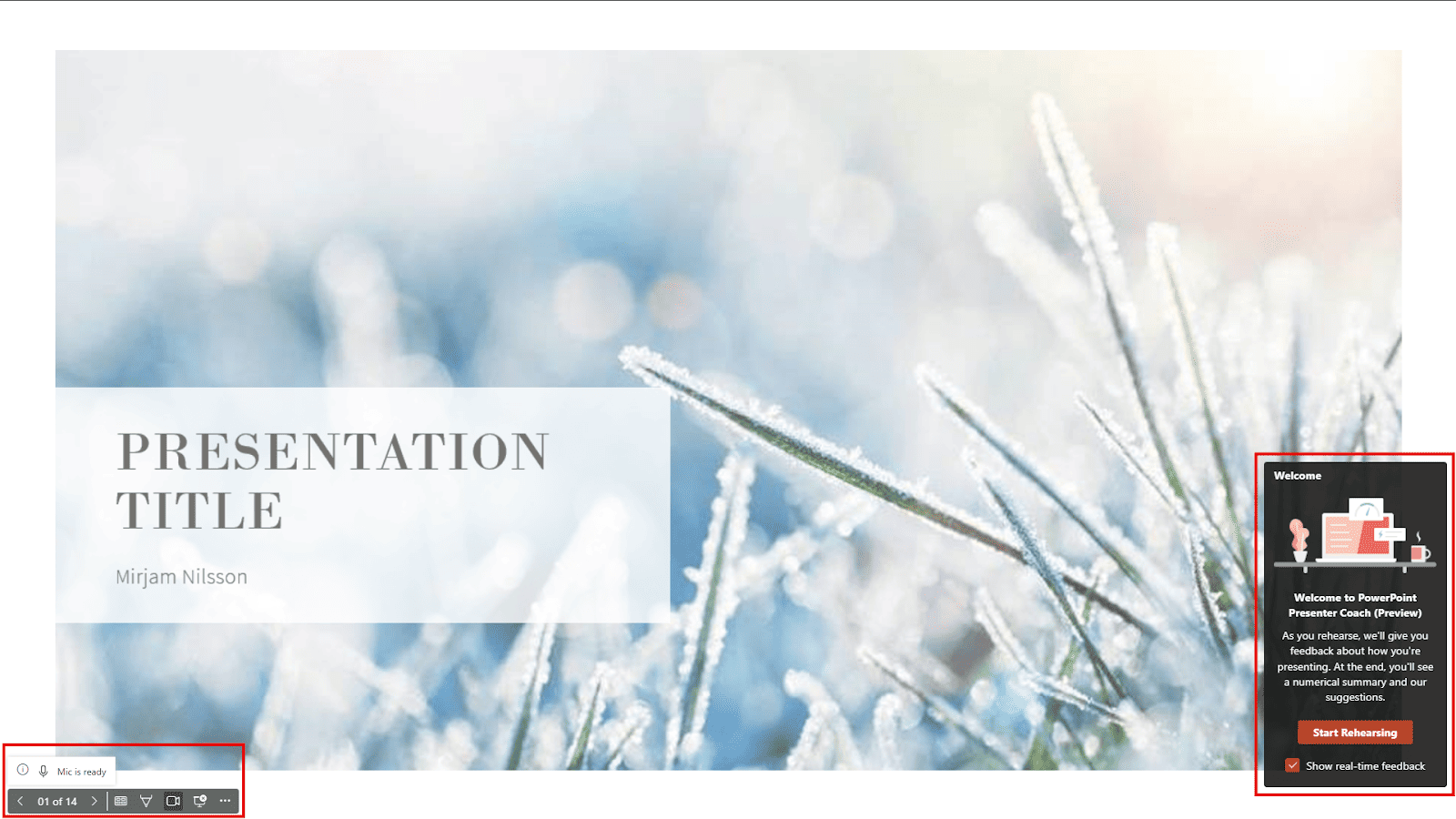
- Step 3: Go to the Slide Show tab and select Rehearse with Coach.
- Note: If you are using the "Simplified Ribbon," you may need to look under the View tab instead.
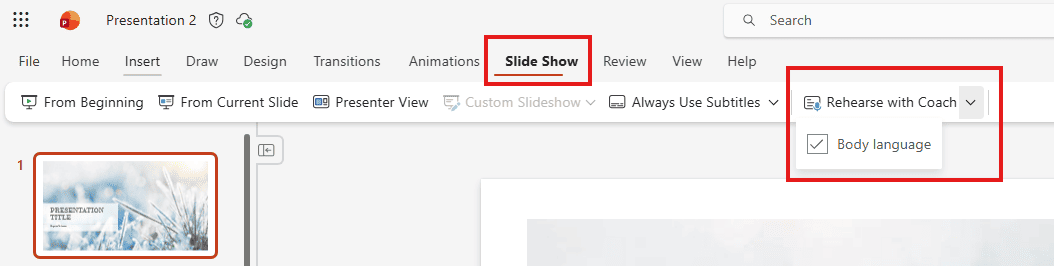
Step 4: Click "Start Rehearsing" in the lower-right corner to begin your session.
2. Using Speaker Coach on Windows or Mac Desktop
For a seamless desktop experience, ensure your files are saved to OneDrive or SharePoint to enable cloud-powered features.
- Step 1: Open your presentation in the PowerPoint desktop app.
- Step 2: Navigate to the Slide Show tab on the top ribbon.

Step 3: Click the Rehearse with Coach button. This will launch the full-screen rehearsal mode, where you can receive Real-time feedback.

3. Using Speaker Coach on Mobile (iOS and Android)
Practicing on the go is easy with the mobile app, though it focuses purely on vocal metrics rather than visual presence.
- Step 1: Open your presentation in the PowerPoint mobile app.
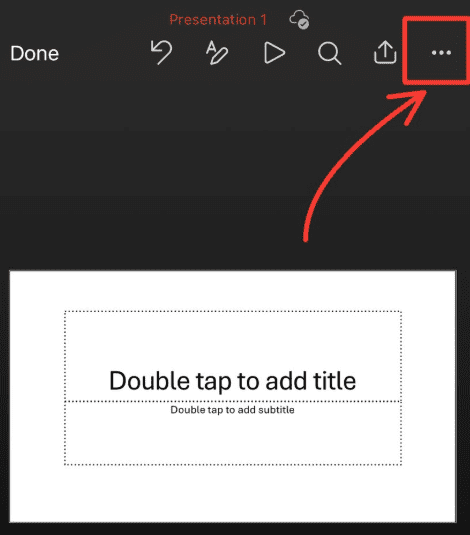
- Step 2: Tap the More (...) icon or the "three dots" menu.
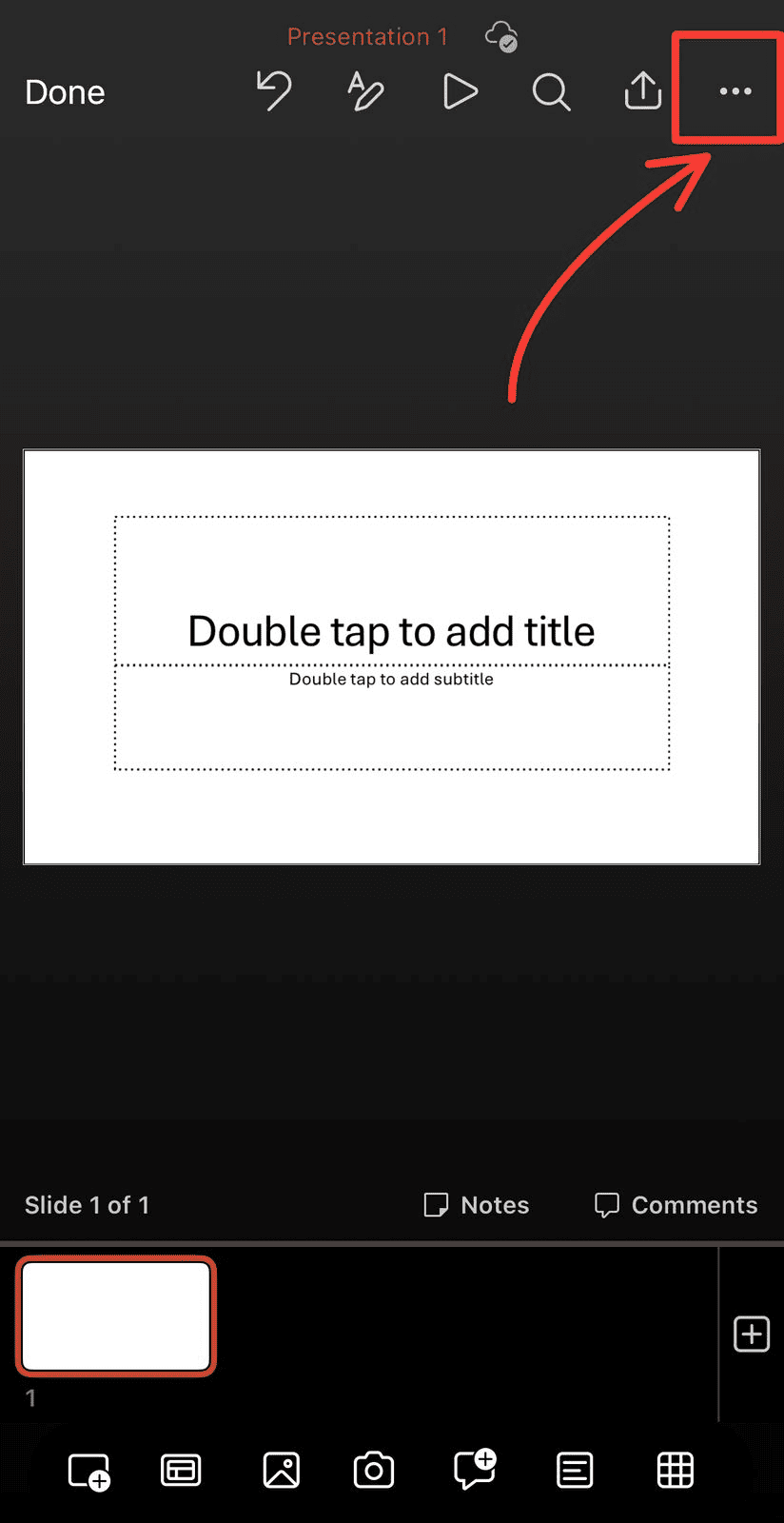
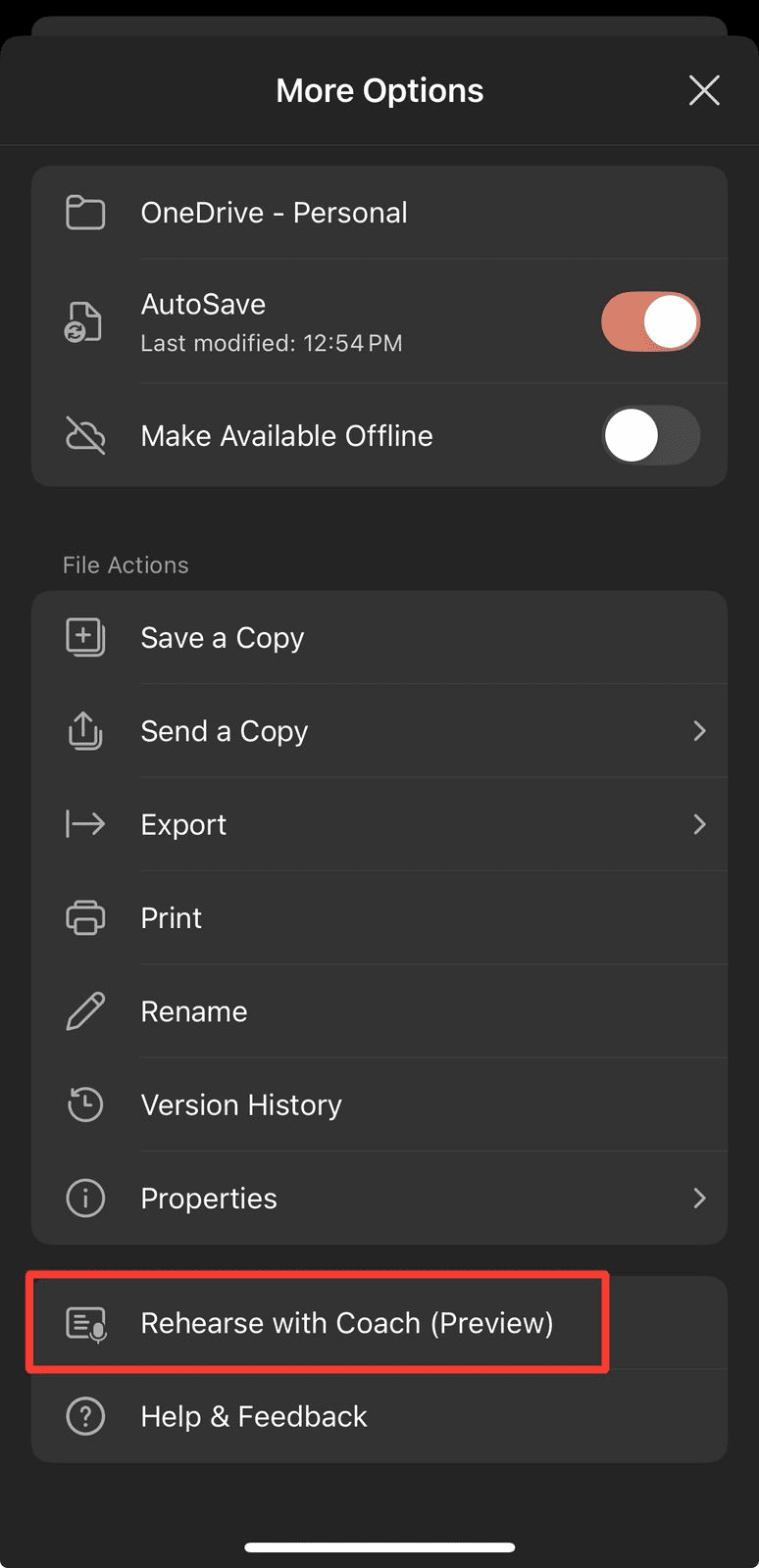
- Step 3: Select Rehearse with Coach and then tap "Start Rehearsing" to begin.
Pro-Tip from 24Slides: To ensure the AI accurately tracks your progress, always rehearse in a quiet environment with a working microphone. If you find the PowerPoint coach isn't appearing, double-check that your Office user interface language is set to English, as this is currently the only supported language.
How to do a rehearsal in PowerPoint?
Once you’ve successfully located the tool on your device, it is time to put it into action. Conducting a session with the presenter coach for PowerPoint is designed to be a private, low-stakes environment where you can refine your presentation skills training before going live.
Whether you are using the web, desktop, or mobile version, the goal is to speak naturally while the AI provides Real-time feedback to help you improve. Here is the step-by-step breakdown of how to use rehearse with coach on PowerPoint to ensure you get the best results.
Step-by-Step: How to do a rehearsal in PowerPoint?
- Initiating the Sessin (Windows & Mac Desktop)
On the desktop version, your primary goal is to master your vocal delivery.
- Step 1: In the Slide Show tab, select Rehearse with Coach.
- Step 2: A dialog box will appear. Ensure the box for "Show real-time feedback" is checked if you want to see live prompts as you speak.
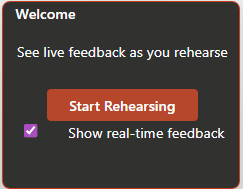
- Step 3: Select Start Rehearsing. The screen will enter full-screen mode, and a message saying "Listening..." will appear in the lower-right corner.
- Step 4: Begin speaking. As you progress, the PowerPoint coach will nudge you if you use too many filler words or if you are making a low-pitched monotone sound.
- Mastering Presence (PowerPoint for the Web)
The web version is the gold standard for PPT rehearse with coach because it offers the most features.
- Step 1: Follow the same path: Slide Show > Rehearse with Coach.
- Step 2: Before clicking Get Started, you can choose to enable Body language analysis. This uses your camera to track eye contact and your distance from the screen.
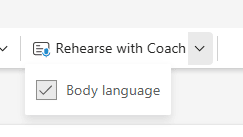
- Step 3: As you speak, watch for prompts in the lower-right corner. On the web, you will receive additional critiques on things like inclusive language, profanity, and whether your face is visible to the camera.
- Rehearsing on the Move (iOS & Android)
Practicing on mobile is the most convenient way to check your pacing and filler words when you don't have access to a computer.
- Step 1: Tap the More (...) menu and select Rehearse with Coach.
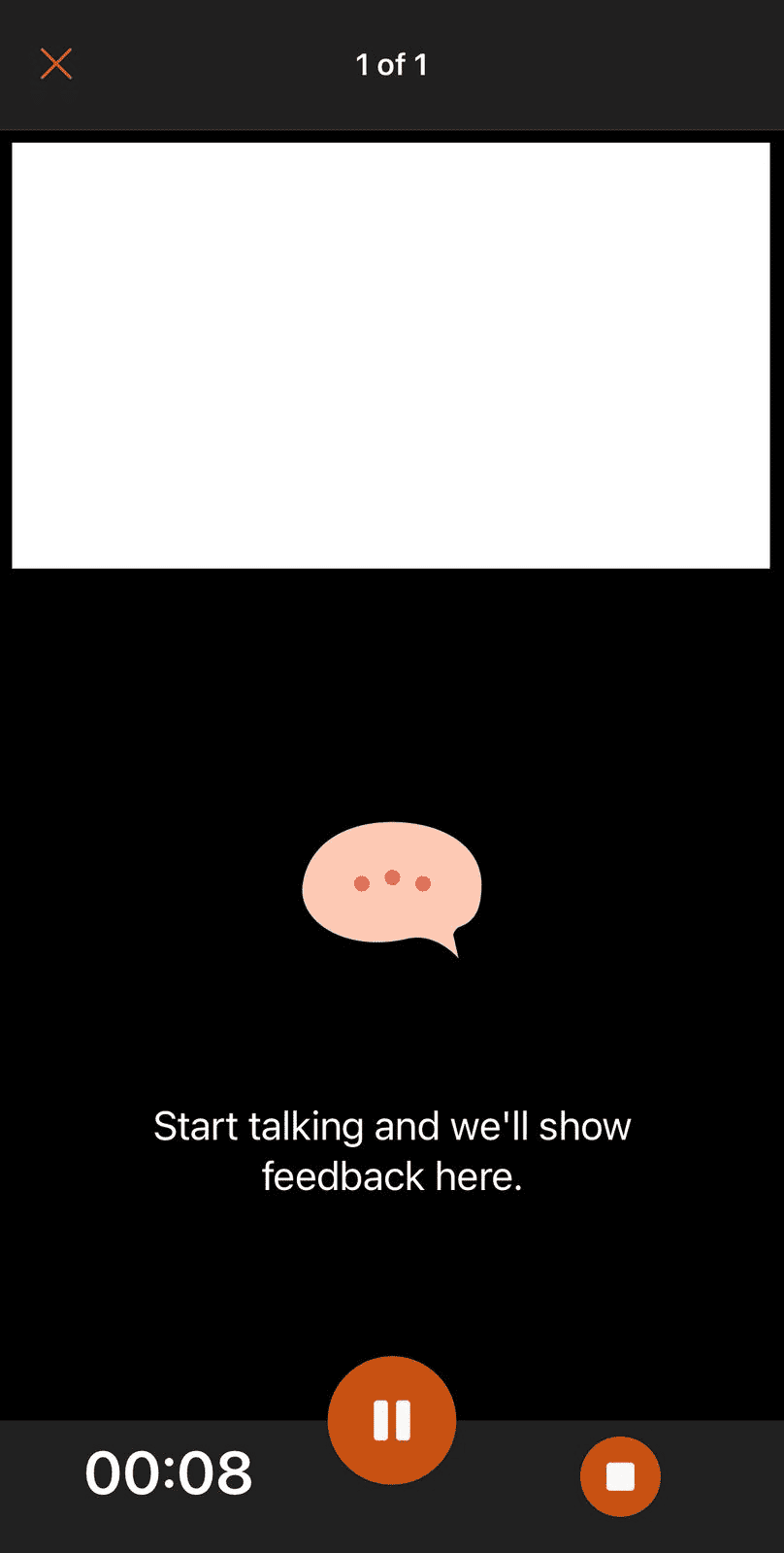
- Step 2: Tap Start Rehearsing and wait for the message: "Start talking, and we'll show feedback here".
- Step 3: Swipe through your slides as you speak. You will receive live feedback at the bottom of your screen regarding your pace and delivery.
What happens during and after the session?
During the rehearsal, the Speaker Coach is constantly analyzing your microphone input. It doesn't just look for "ums" and "ahs"; it checks for "speech refinements" like wordiness, euphemisms, and repetitive phrasing. Unlike the traditional rehearse timings PowerPoint feature, this tool is purely focused on your performance, rather than automating slide transitions.
When you finish and exit full-screen mode, a Rehearsal Report will automatically pop up. According to official Microsoft support guides, this report summarizes your performance in several categories:
- Pace: A graph showing your words per minute over time.
- Fillers: A count of the specific filler words you used most often.
- Inclusiveness: Feedback on any culturally sensitive terms detected.
- Originality: A warning if you simply read the text directly from your slides.
Pro-Tip from 24Slides: The Rehearsal Report disappears as soon as you close it. To track your improvement over multiple sessions, always take a screenshot of the report so you can compare your metrics later.
Put it to the Test: How to Use Rehearse with Coach on PowerPoint Across All Devices
We aren’t just here to list features; we’re putting this technology to the test. To see if the PowerPoint coach lives up to the hype, we conducted a cross-platform "Stress Test."
What we are doing: We are running a head-to-head comparison of Speaker Coach across its three major platforms: Desktop, Web, and Mobile.
How we are doing it: By using a specifically engineered "mistake-heavy" script. This text is intentionally packed with every error the AI claims to detect, from filler words and monotone sounds to non-inclusive language and direct slide reading.
Why: Because as a presenter, you need to know if you can trust the Real-time feedback on your phone as much as you do on your laptop. Our goal is to find the "blind spots" where the AI might remain silent despite obvious errors.
The 3-Minute Accuracy Experiment: The Stress Test
To conduct this test, we prepared a slide containing a mission statement and launched Rehearse with Coach. We read the script below exactly as described to see how the Rehearsal Report would handle a "worst-case scenario" delivery.
The Test Script: "The Delivery Disaster"
- For Monotone: We spoke in a flat, robotic voice with zero emotion to test the pitch sensors.
- For Pace: We started slow, then sped up drastically during the second paragraph to trigger the "speeding" warning.
- For Originality: We read the bracketed mission statement word-for-word from the slide.
"Hello. Um, so, today I am going to, uh, talk about our new project. [Reading from slide: Our mission is to provide high-quality solutions for global clients while maintaining a focus on sustainable growth and innovation in the tech sector.] Like, as you can see on the slide, it says exactly that our mission is to provide high-quality solutions for global clients.
Basically, the best man for the job needs to understand that um, we are like working really fast now. (Start speaking very fast here) We have to get the results done by Friday because if we don't get the results done by Friday the boss will be mad and we don't want the boss to be mad so we have to work fast and fast and fast. You know?
(Return to normal speed) We need to be awesome at this. This project is awesome, and our team is awesome. I mean, actually, it's just like, um, great. Technically, we are finished. Right? Thank you."
The Final Verdict: Desktop vs. Mobile vs. Web
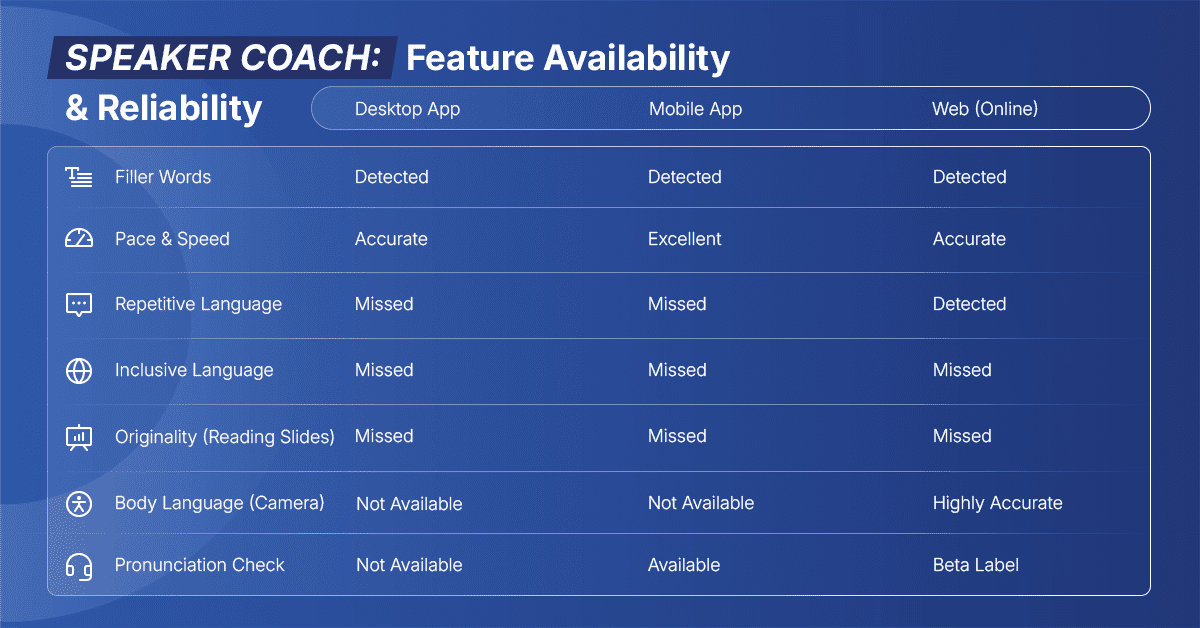
Our "Delivery Disaster" test revealed that while Speaker Coach is a powerful tool, it is far from a finished product. The biggest takeaway? The features Microsoft advertises aren't always where you expect them to be.
Key Takeaways from Our Experiment
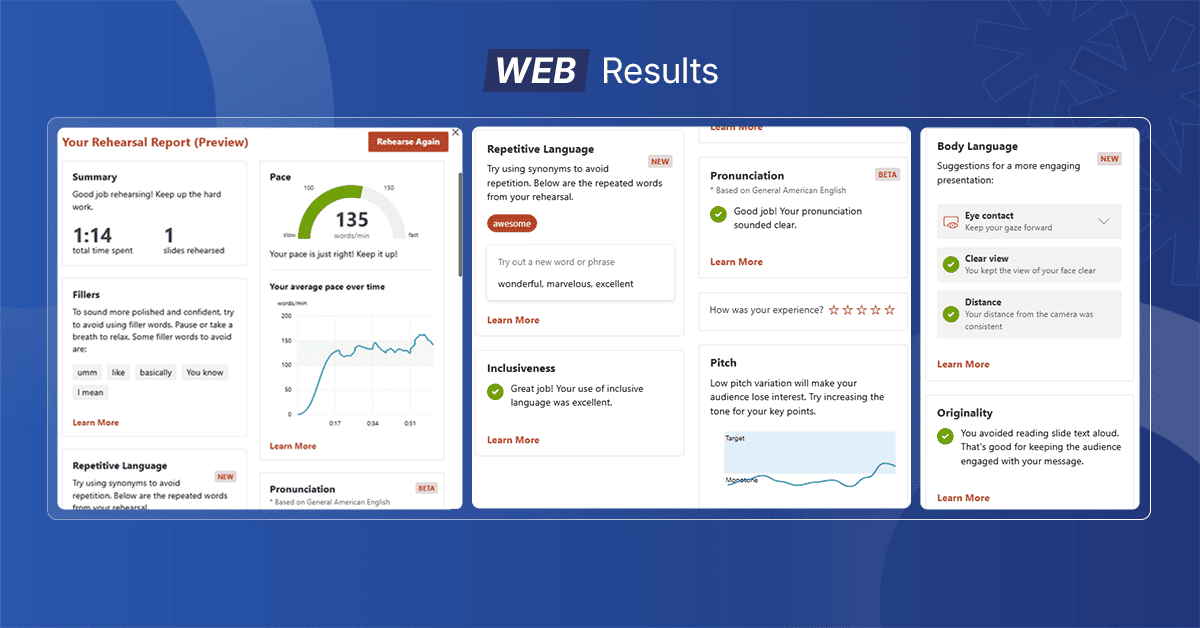
- The Web Version: The Only "Vocabulary" Expert
Our test proved that the Web version is the only platform that truly analyzes your word choice. While Mobile and Desktop ignored our constant use of the word "awesome," the Web version flagged it as repetitive language. If you have a habit of using "crutch words," the browser is the only place you'll catch them. - The Pronunciation Trap: Beta vs. Reality
One of the most interesting findings was how Microsoft labels the Pronunciation feature:
- On Web: It is explicitly labeled as "Beta," warning you that it’s still learning.
- On Mobile: The feature exists, but the "Beta" label is missing, which is a bit misleading!
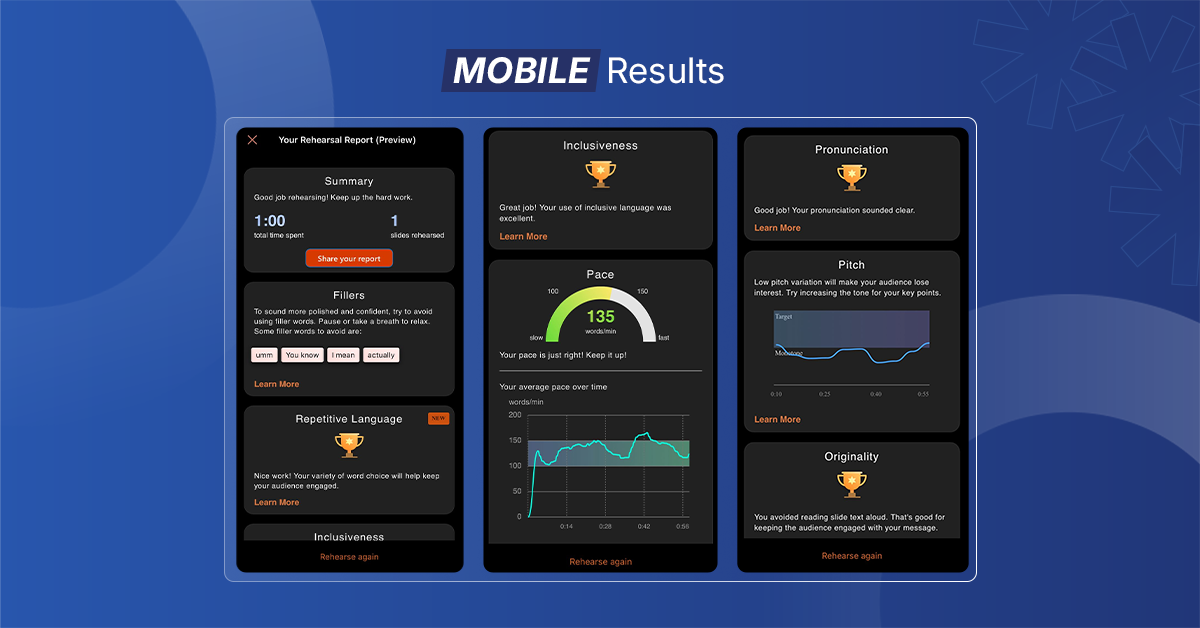
- On Desktop: This feature is completely absent. If you need to check your articulation, avoid the desktop app.
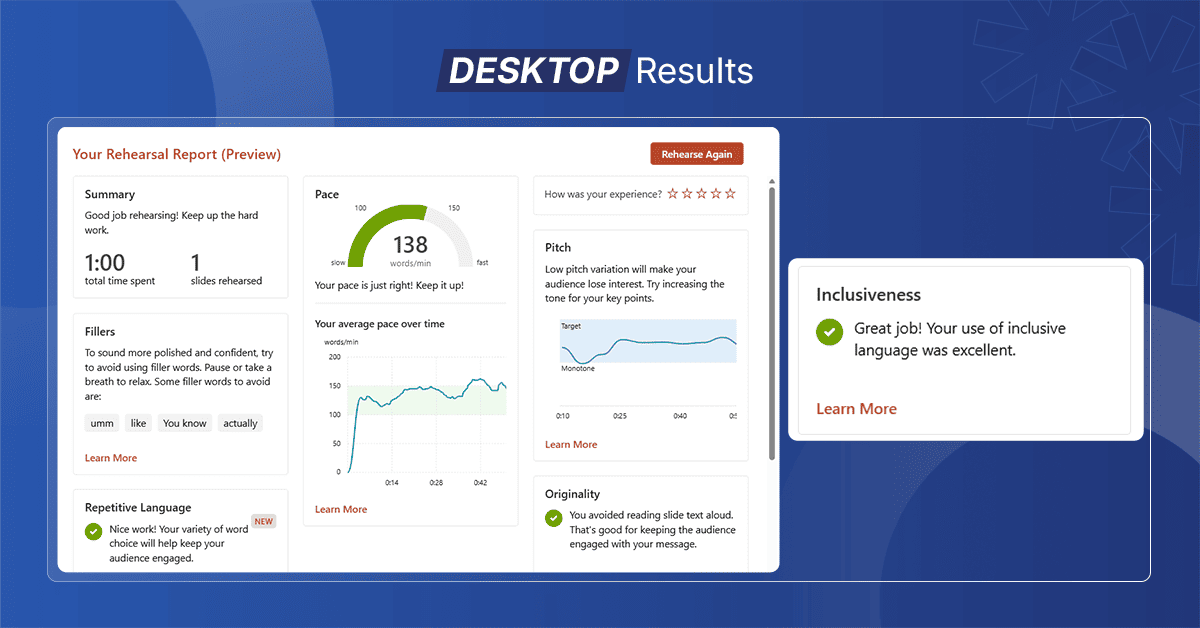
- The Camera is the "Truth Teller"
Despite the AI's struggle with inclusivity, the Body language analysis on the web was spot on. It successfully identified every time the speaker looked away from the camera or slumped.
Stop using filler words: How Speaker Coach cleans up your speech
The most consistent feature across every platform we tested was the ability to identify filler words . Whether you are using the "Simplified Ribbon" on the web or the mobile app in a taxi, the AI is programmed to listen for "vocal disfluencies."
How it Works
Speaker Coach compares your audio against a database of common fillers like "um," "uh," "like," "actually," and "basically."
- Real-time feedback: On all devices, a small prompt will appear in the corner of your screen as soon as you use a filler word more than a few times.
- The "Nudge": The goal isn't to make you speak like a robot, but to help you become aware of your "crutch words." According to Microsoft’s research, simply being made aware of these words in real-time can reduce their usage by up to 30% in future sessions.
Why the Report Matters
At the end of your session, the Rehearsal Report gives you a total count. Seeing "Um: 12" in black and white is often the "aha!" moment most presenters need to start practicing more intentional pauses instead of filling the silence with noise.
Speaker Coach vs. Rehearse Timings: What’s the Difference?
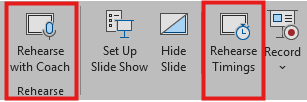
It is common to confuse Speaker Coach with the older rehearse timings PowerPoint feature, as both live under the "Slide Show" tab. However, Microsoft is very explicit: these tools serve two completely different masters. One is an AI mentor for your voice; the other is a stopwatch for your slides.
If you are looking for a presentation skills training Coach, you want the Coach. If you are setting up a self-running booth at a trade show, you want Rehearse Timings.
The Core Distinction: Feedback vs. Automation
The fundamental difference lies in how the session ends. When you finish a session with Speaker Coach, you get a detailed Rehearsal Report to help you improve your delivery. When you finish with Rehearse Timings, PowerPoint asks if you want to save the recorded times to automate your slides.
When to Use Which Tool?
Use Speaker Coach When:
- You want to stop making a low-pitched monotone sound and find your vocal range.
- You need to identify and remove filler words like "um" and "basically."
- You are practicing for a live audience and need Real-time feedback on your eye contact (Web version only).
Use Rehearse Timings When:
- You are creating a "kiosk" presentation that needs to loop automatically in a lobby.
- You are preparing for a "PechaKucha" or a lightning talk where slides must change every 20 seconds.
- You need to record a presentation to export as a video file later.
Understanding these automation tools is essential for high-pressure formats. To see these timing tools in action, check out our deep dive into What is a Pecha Kucha Presentation? and how to master its strict 20-second-per-slide rule.
Can You Use Both?
Absolutely. In fact, for a high-stakes presentation, we recommend a "Double Rehearsal." First, use Rehearse with Coach PowerPoint to polish your verbal delivery and remove crutch words. Once you are confident in your speech, use rehearsed timings in PowerPoint to ensure your content fits perfectly within your allotted time slot.
Pro-Tip from 24Slides: Remember that while Speaker Coach tracks your pace, it will not automatically move your slides for you. You are still responsible for clicking through your deck during the rehearsal!
Rehearse with Coach PowerPoint Not Available: How to Fix It
It’s frustrating when you’re ready to polish your presentation and the Speaker Coach button is either grayed out or missing. Because this tool relies on cloud-based AI, its availability depends on your license, file format, and privacy settings.
If you can’t find the PowerPoint coach, use this troubleshooting guide based on official Microsoft Support documentation.
1. The "Start Rehearsing" Button is Grayed Out
If the button is visible but inactive, the issue is usually technical rather than a missing feature:
- Old File Format (.ppt or .pps): AI features require the modern XML-based format. If your file extension is .ppt, the Coach will be disabled.
- The Fix: Go to File > Save As and convert the file to a .pptx format.
- Sign-In Status: You must be signed in with a Microsoft 365 account (Personal, Family, or Work/School). If you are using PowerPoint "offline" without a signed-in profile, the button remains grayed out.
- Privacy Settings (Connected Experiences): Speaker Coach is a "Connected Experience" that analyzes audio in the cloud.
- The Fix: Go to File > Account > Manage Settings (under Account Privacy) and ensure that "Optional connected experiences" is enabled.
2. The Button is Missing Completely
If you don’t see "Rehearse with Coach" in the Slide Show tab at all, check your version and settings:
- Subscription vs. Perpetual: Speaker Coach is not available in one-time purchase versions like PowerPoint 2019 or 2021. It is exclusive to Microsoft 365 subscribers.
- Language Requirements: Currently, the coach is only supported when your Office user interface language is set to English.
- The Fix: Go to File > Options > Language and ensure English is the preferred display language.
- Browser Limitations (Web Version): If you are using PowerPoint for the web, Microsoft recommends using Edge (version 15+) or Chrome (version 52+). Other browsers or "Incognito" modes may hide the feature due to microphone permission restrictions.
Beyond AI: Mastering Effective Presentation Techniques
Our experiments with Speaker Coach proved one thing: AI is a fantastic "technical mirror," but it isn't a "strategic mentor." It can tell you how you sound, but it cannot tell you if your message actually resonates with the audience. In professional communication, AI catches the "voice" (the mechanics), but only a human can truly catch the "vision" (the emotional and strategic impact).
Why AI Catches the "Voice," but Humans Catch the "Vision"
To truly master presentation skills training, it’s important to understand where artificial intelligence ends and human intuition begins.
- The Empathy Gap: AI cannot "read the room." A great presenter senses the audience’s energy, knowing when to use a well-timed pause or pivot when an executive looks skeptical. The PowerPoint coach might say your pace is "just right," but a human knows if that pace feels insensitive during a difficult update.
- Storytelling vs. Data Processing: The coach identifies repetitive language, but it doesn't understand narrative arcs. It sees you used "growth" five times; a human coach sees that your story about a company pivot is what actually builds trust.
- The Virtual Challenge: While the AI's body language analysis tracks your eye contact, it doesn't teach you the nuances of virtual engagement. To truly bridge the gap between a screen and your audience, you need a strategy for the "digital stage." Check out our guide on virtual presentation tips for hybrid pitches to master the art of remote influence.
A great delivery requires more than just avoiding "ums"; it requires a narrative that sticks. Once you’ve used the AI to polish your vocal "voice," ensure your "vision" resonates by applying The Art of Presenting: 8 Storytelling Techniques You Can't-Miss in Your Business Presentation.
The 24Slides Edge: Design Meets Storytelling
At 24Slides, we’ve spent over a decade helping 4,000+ companies move beyond basic bullet points. While Speaker Coach helps you refine your delivery, our expertise lies in ensuring your slides support your story so you don't have to read them.
- Visual Storytelling Experts: Our designers don’t just "make things pretty"; we use visual hierarchy and contrast to drive audience focus exactly where you want it.
- 10-Hour Turnaround: We understand that high-stakes presentations often require rapid turnaround. Our global team can transform your rough drafts into professional, on-brand masterpieces overnight.
- Focus on Impact: By letting us handle the design, you can spend your time where it matters most: practicing your delivery and perfecting your narrative.

While Speaker Coach alerts you when you’re reading your slides verbatim, the real solution is to improve your slide design. If your data-heavy slides are tempting you to read, learn how to simplify them with our guide on Mastering the Art of Presenting Data in PowerPoint.
Want to stop worrying about your slides and focus entirely on your delivery? At 24Slides, we specialize in taking your rough drafts and turning them into world-class presentations in as little as 24 hours. Explore our professional design services and let us handle the "vision" while you master the "voice."
Keep Improving Your Presentation Skills
Ready to take your expertise even further? Check out these deep dives from our experts: